Are you considering using eSIM on your Galaxy smartphone but wondering, "Is my device compatible?" or "Will the setup be difficult?"
This comprehensive guide provides the latest 2025 list of Galaxy eSIM-compatible models, detailed installation methods using QR codes or manual input, activation procedures, SIM switching instructions, and troubleshooting solutions.
Even if you've never used eSIM before, this step-by-step guide with visual references and tables will help you configure it without confusion.

Koki Abe
eSIM Portal Administrator
- Operates travel eSIM store for international travelers
- 8 years of sales experience in telecommunications (mobile, fiber optic)
- Backpacker who traveled to 16 countries worldwide
- Shares insights on eSIM benefits discovered during travels


Contents
- 1 Complete List of Galaxy eSIM Compatible Models【2025 Edition】
- 2 Two Methods to Install eSIM on Galaxy
- 3 Settings for International Use
- 4 How to Switch Between Physical SIM and eSIM
- 5 Device Transfer (Android eSIM Transfer)
- 6 Troubleshooting When Connection Fails
- 7 Frequently Asked Questions
- 7.1 Can I Use 2 eSIMs Simultaneously on Galaxy?
- 7.2 Do All Galaxy Devices Purchased Domestically Support eSIM?
- 7.3 Can I Use eSIM Without SIM Unlock?
- 7.4 Can I Restore an eSIM After Deletion?
- 7.5 What Happens When Data Allowance Is Exhausted?
- 7.6 Can I Use eSIM on Galaxy Watch?
- 7.7 Can I Switch from eSIM Back to Physical SIM?
- 8 Conclusion
Complete List of Galaxy eSIM Compatible Models【2025 Edition】
Galaxy smartphone eSIM compatibility varies depending on the model and purchase region. First, let's check if your device supports eSIM.
How to Check if Your Galaxy Supports eSIM
You can easily verify whether your Galaxy smartphone is eSIM compatible using the following methods.
Method 1: Check in Settings (Quick and Easy)
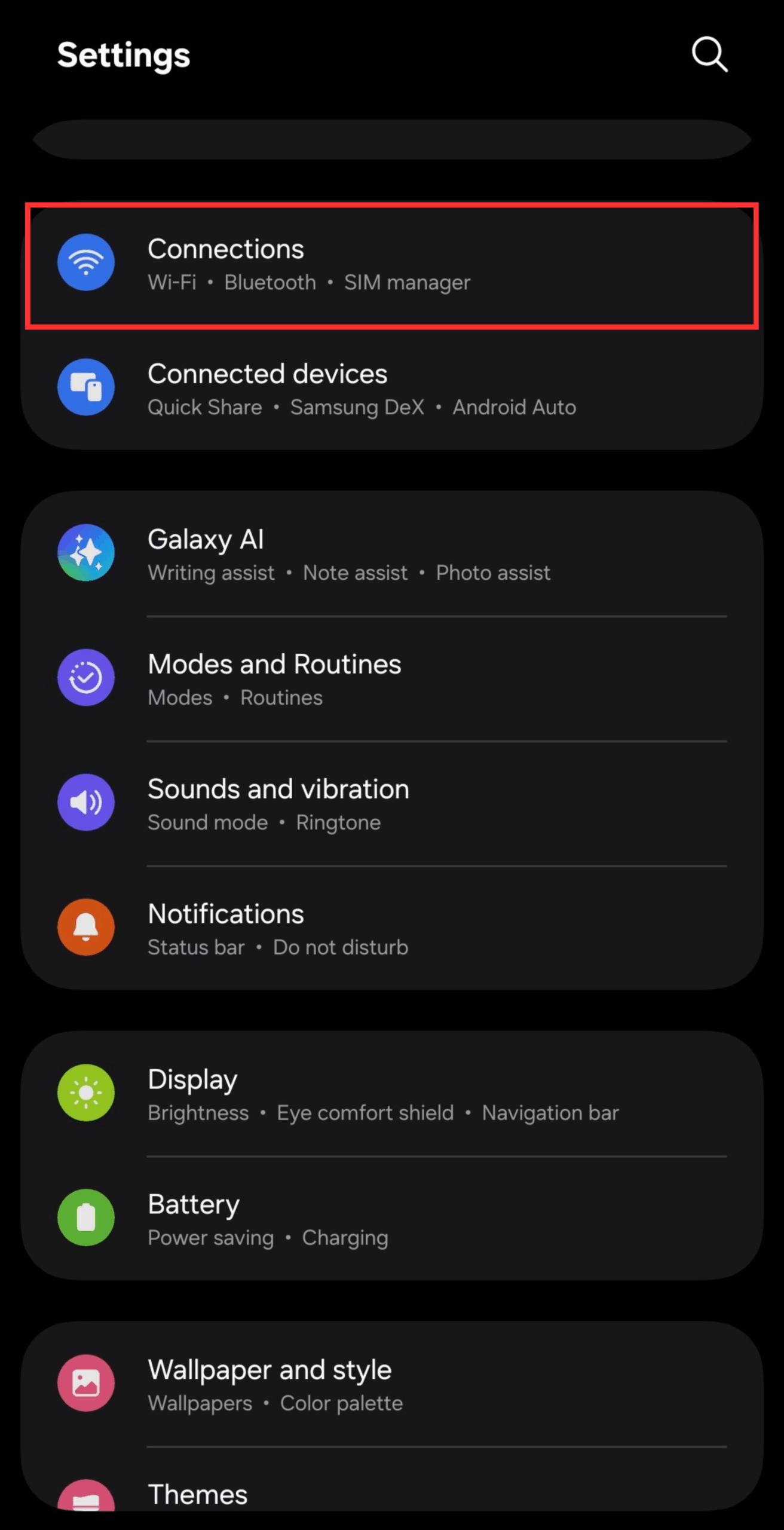
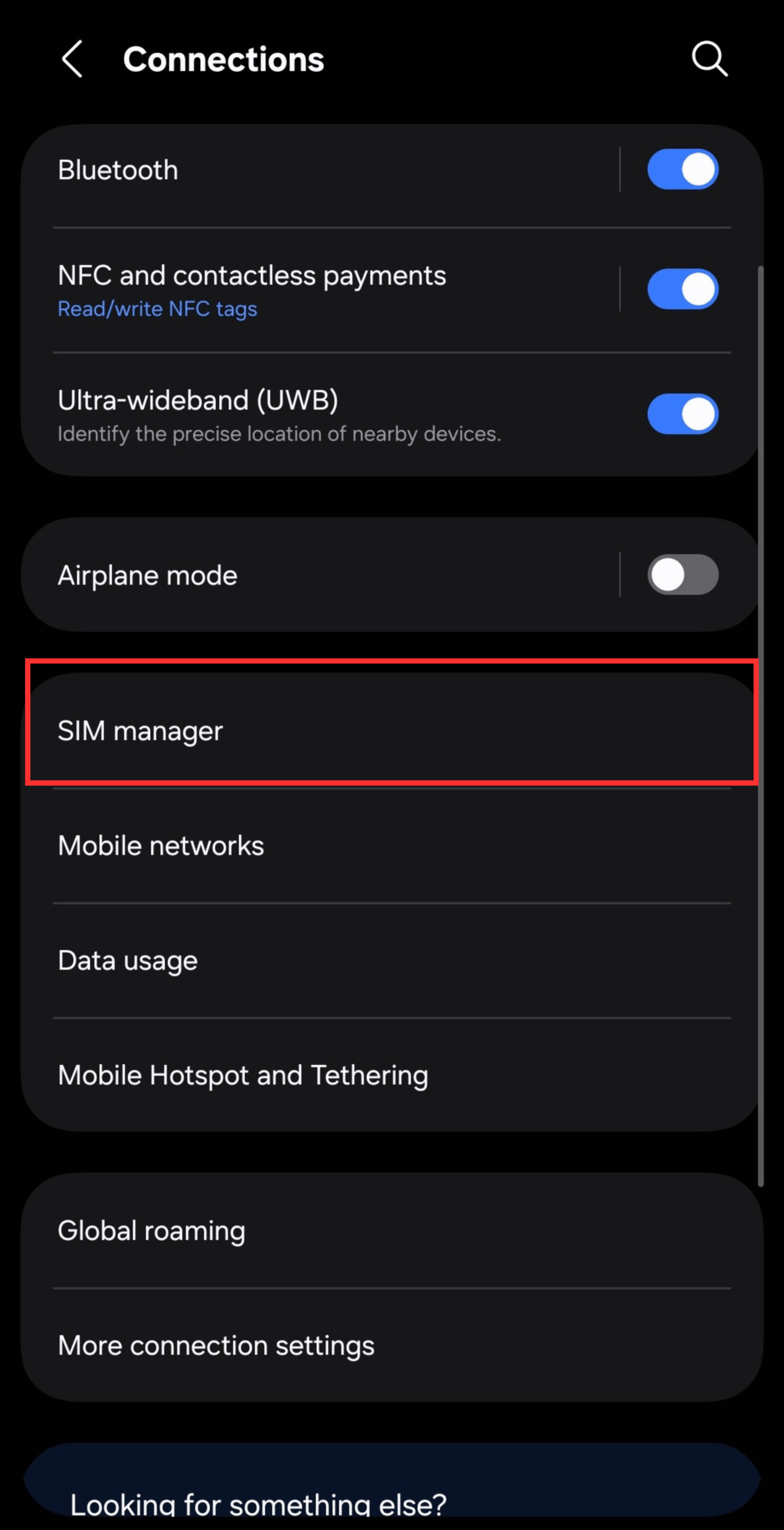
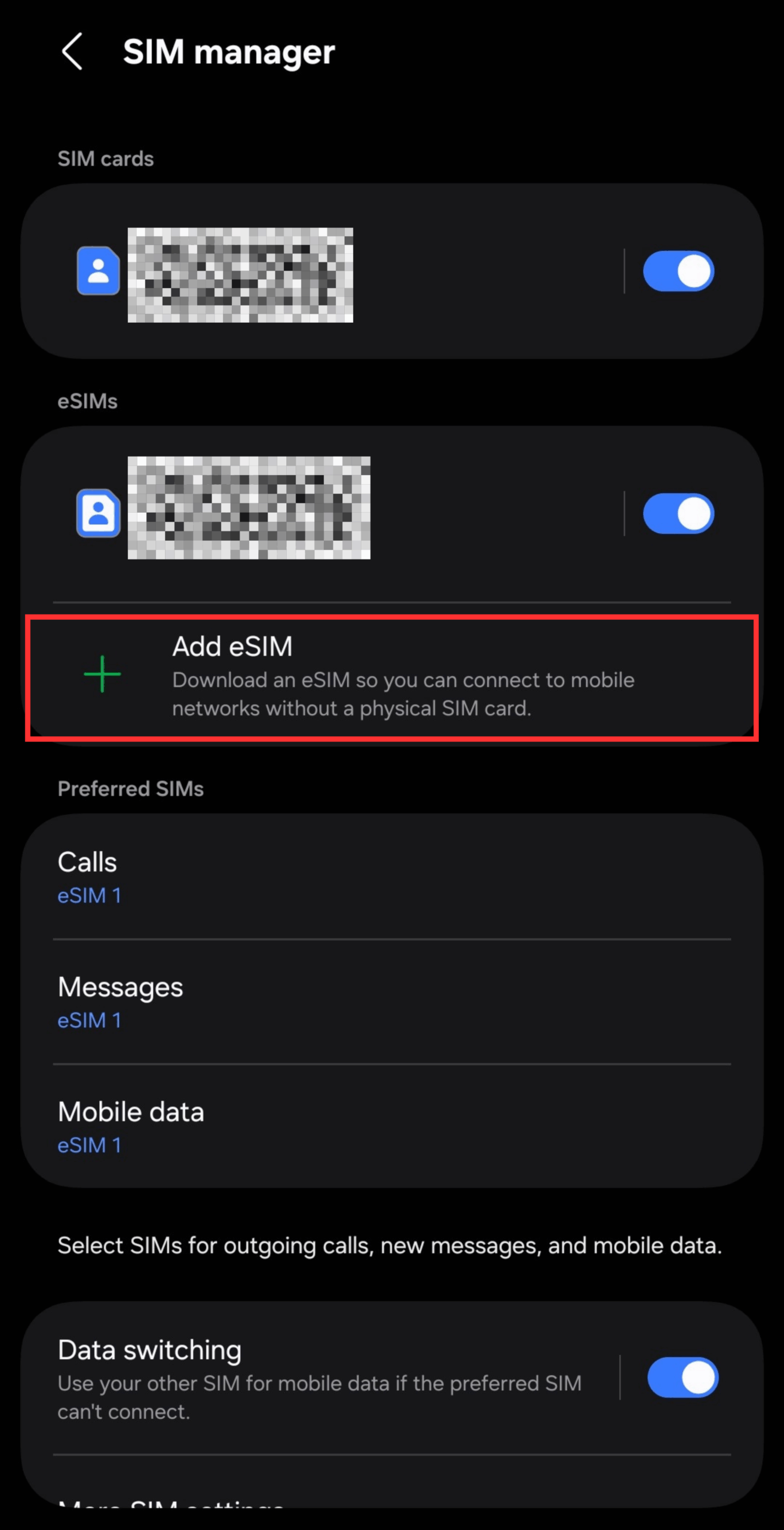
If you see the "Add eSIM" option, your device is compatible.
If this option is not displayed, your device does not support eSIM.
Method 2: Check Using EID (Most Reliable Method)
Open the Phone app and dial "*#06#".
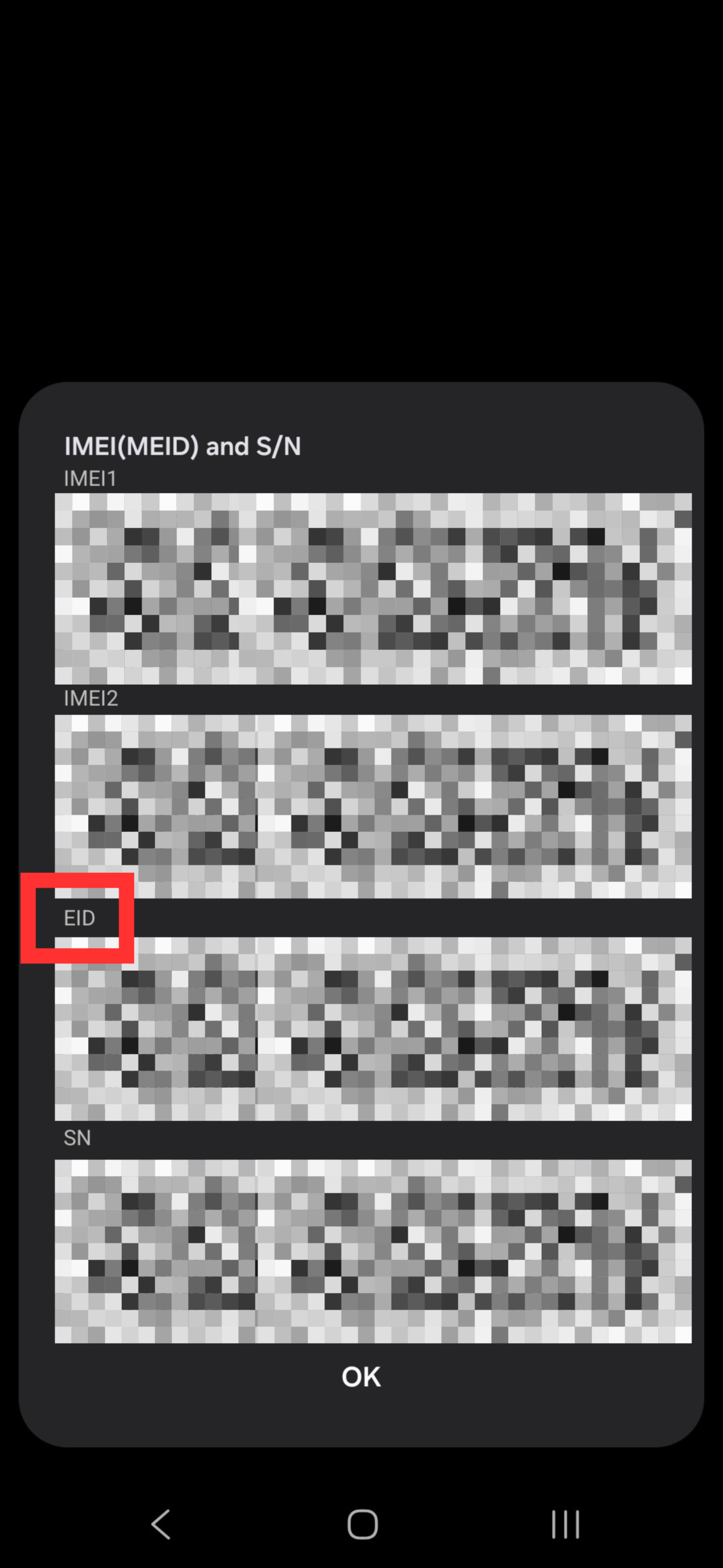
※Compatibility may vary depending on the region of purchase or carrier. For definitive confirmation, checking the EID number is recommended.
Galaxy eSIM Compatible Models List【2025 Edition】
Starting from the newest models, I will explain in detail the compatibility status of each series. If you are considering a purchase, please use this as a reference.
S Series Compatibility
S25 Series (Latest 2025 Model)
S24 Series
S23 Series
S22 Series
S21 Series
S20 Series
Important Note: S20 FE Model
Regional Compatibility Differences
Z Fold / Flip Series
All foldable Galaxy smartphones generally support eSIM across all models. As flagship models featuring the latest technology, there's typically no need to worry about compatibility.
Z Fold / Flip 7 Series (Latest 2025 Model)
Z Fold / Flip 6 Series
Z Fold / Flip 5 Series
Z Fold / Flip 4 Series
Z Fold / Flip 3 Series
eSIM Support Timeline
A Series (Verification Required)
A Series Requires the Most Verification
Compatible A Series Models
Non-Compatible A Series Models
- Previous generation models such as A52, A53
- All A1x entry-level models
- Carrier versions require individual verification
Pre-Purchase Verification Method
Non-Compatible Models List
The Following Models Do Not Support eSIM
- All M Series Models - Entry-level devices with physical SIM only
- Galaxy S20 FE - Only exception among FE models
- China/Hong Kong/Taiwan Versions - Most models are non-compatible
- Some Korean Versions - Non-compatible in some cases due to regional specifications
Older models generally support physical SIM slots only. eSIM functionality has been gradually implemented in flagship models since 2020.
Two Methods to Install eSIM on Galaxy
Galaxy smartphones offer two methods for reading eSIM: scanning a QR code or manually entering an activation code. The QR code method is overwhelmingly easier, so basically please choose this one.
However, if the QR code cannot be read for some reason, you can also set it up by manual entry.
We also recommend configuring your eSIM while connected to Wi-Fi. Mobile data connections may result in interrupted downloads during setup. Additionally, eSIM deletion requires careful operation. Re-installation rules vary by provider, with some imposing usage limits or invalidating the same QR code after deletion. Before deleting, verify your eSIM service provider's re-issue conditions for peace of mind!
What You'll Need
Before starting the setup process, verify that you have the following items ready:
- Stable Wi-Fi connection
- eSIM-compatible device
- Device must be SIM unlocked
- QR code or activation code provided by your carrier/provider
Install Using QR Code (Recommended)
This is the easiest method. Simply scan the QR code sent by your provider with your camera to complete the installation.
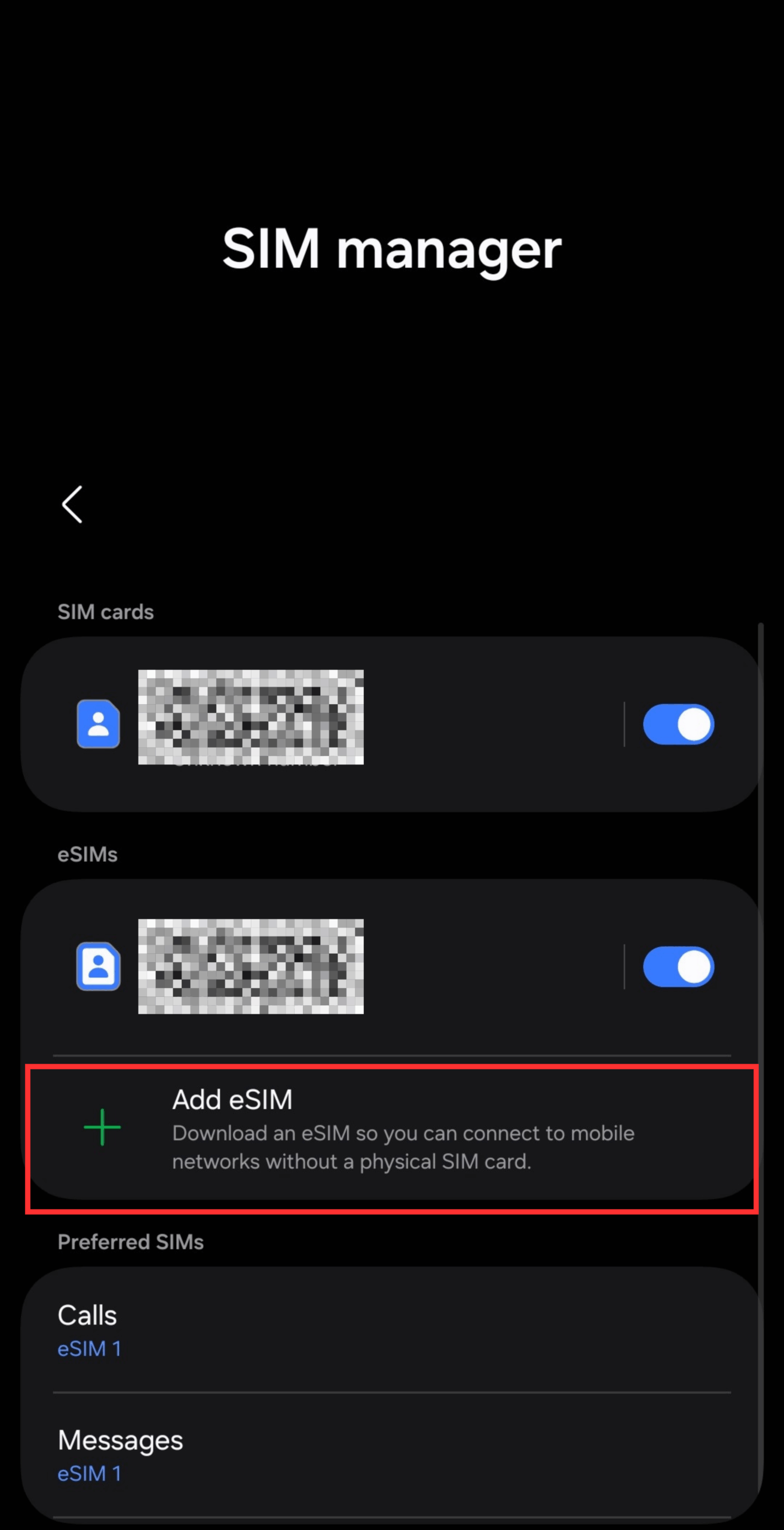
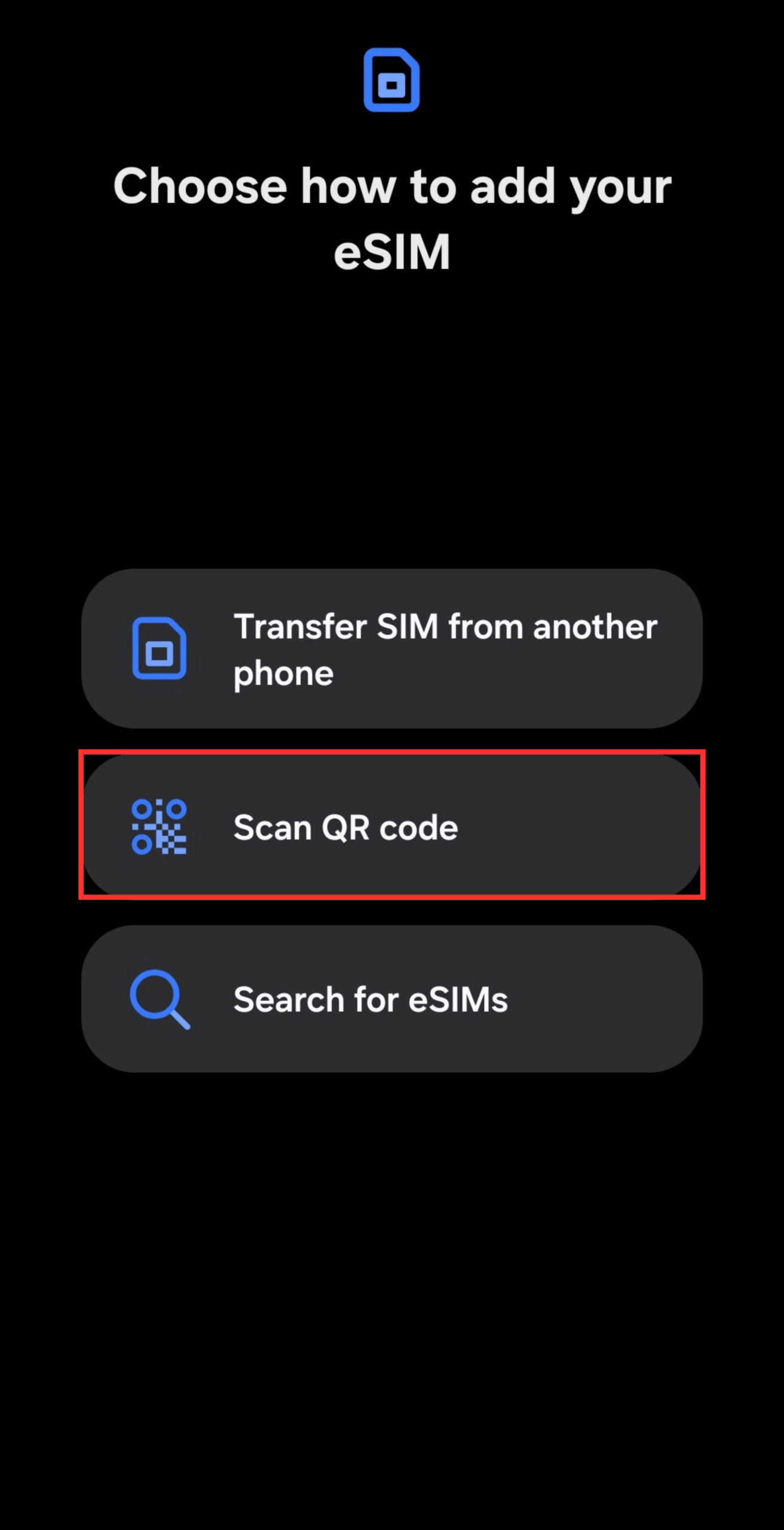
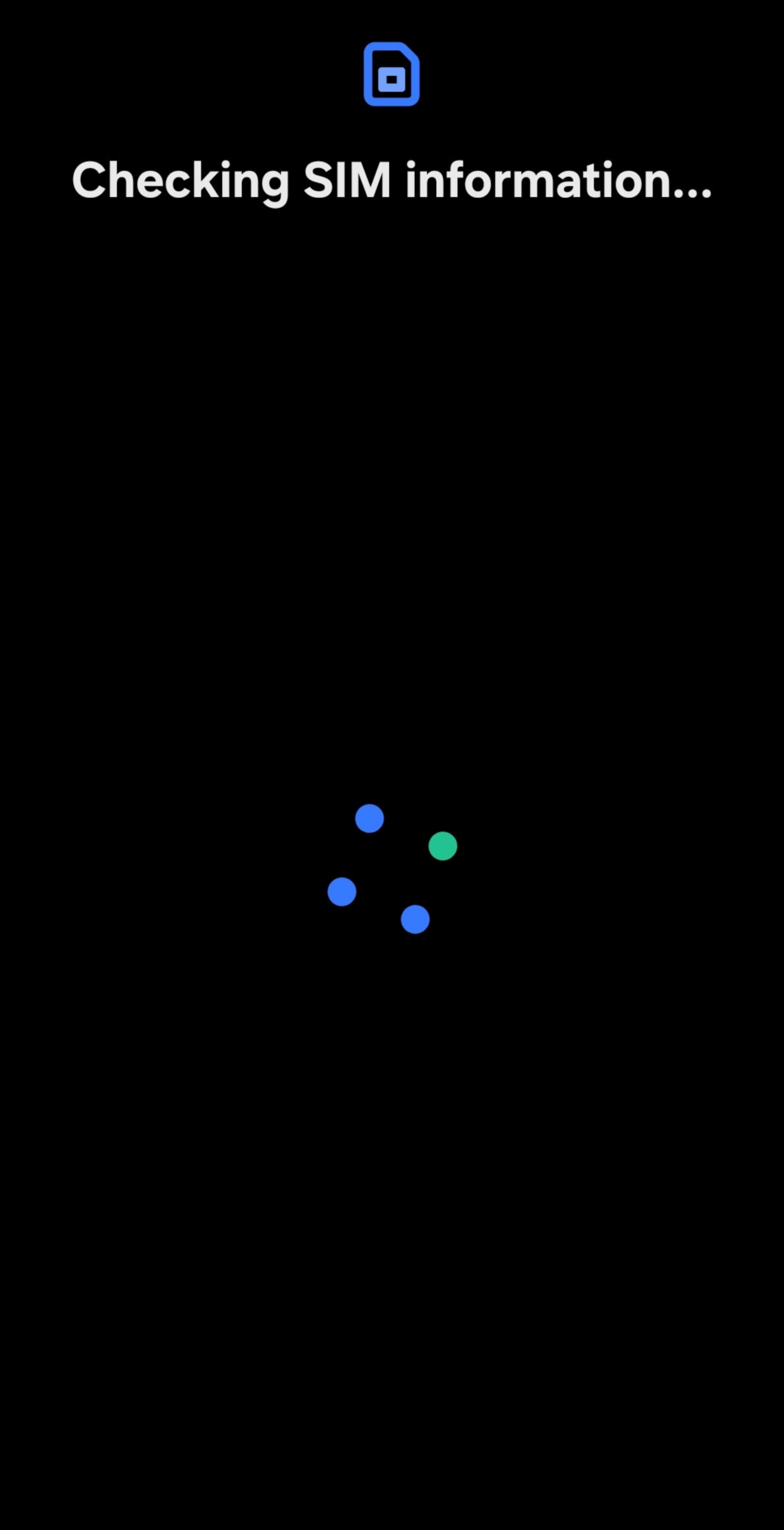
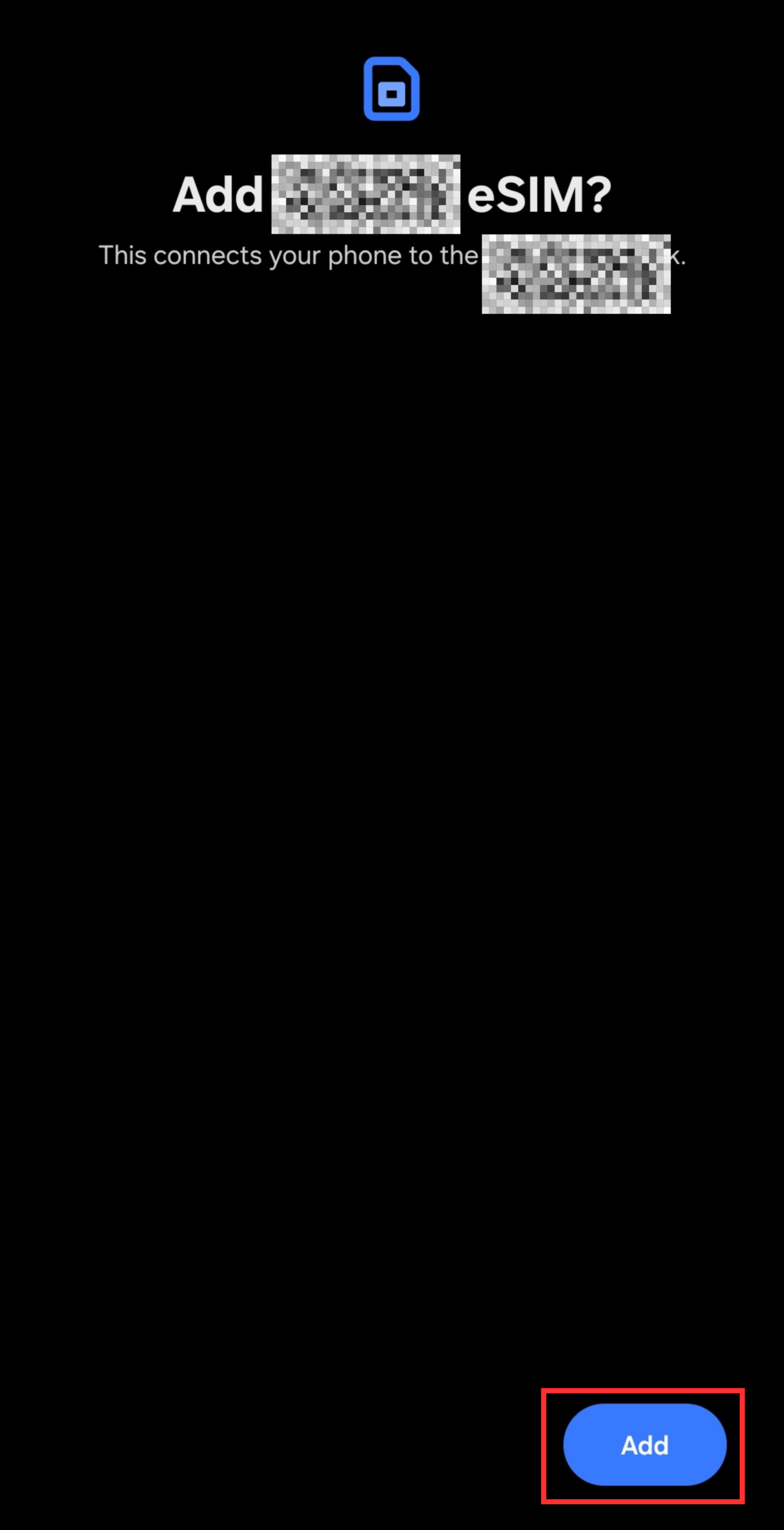
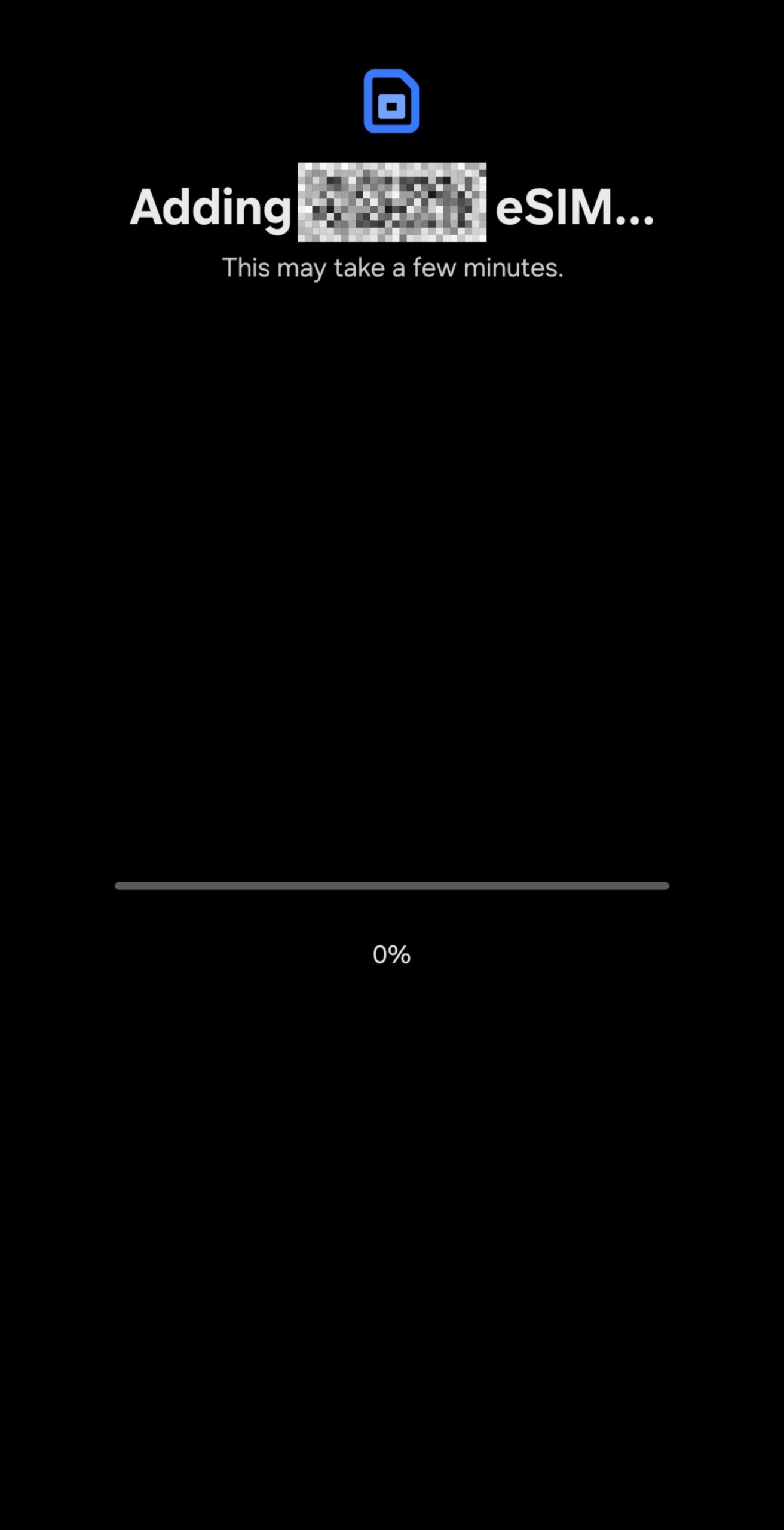
Installing an eSIM via QR code typically takes about 3 minutes.
Manual Code Entry
If the QR code cannot be scanned, you can install the eSIM by manually entering the activation code.
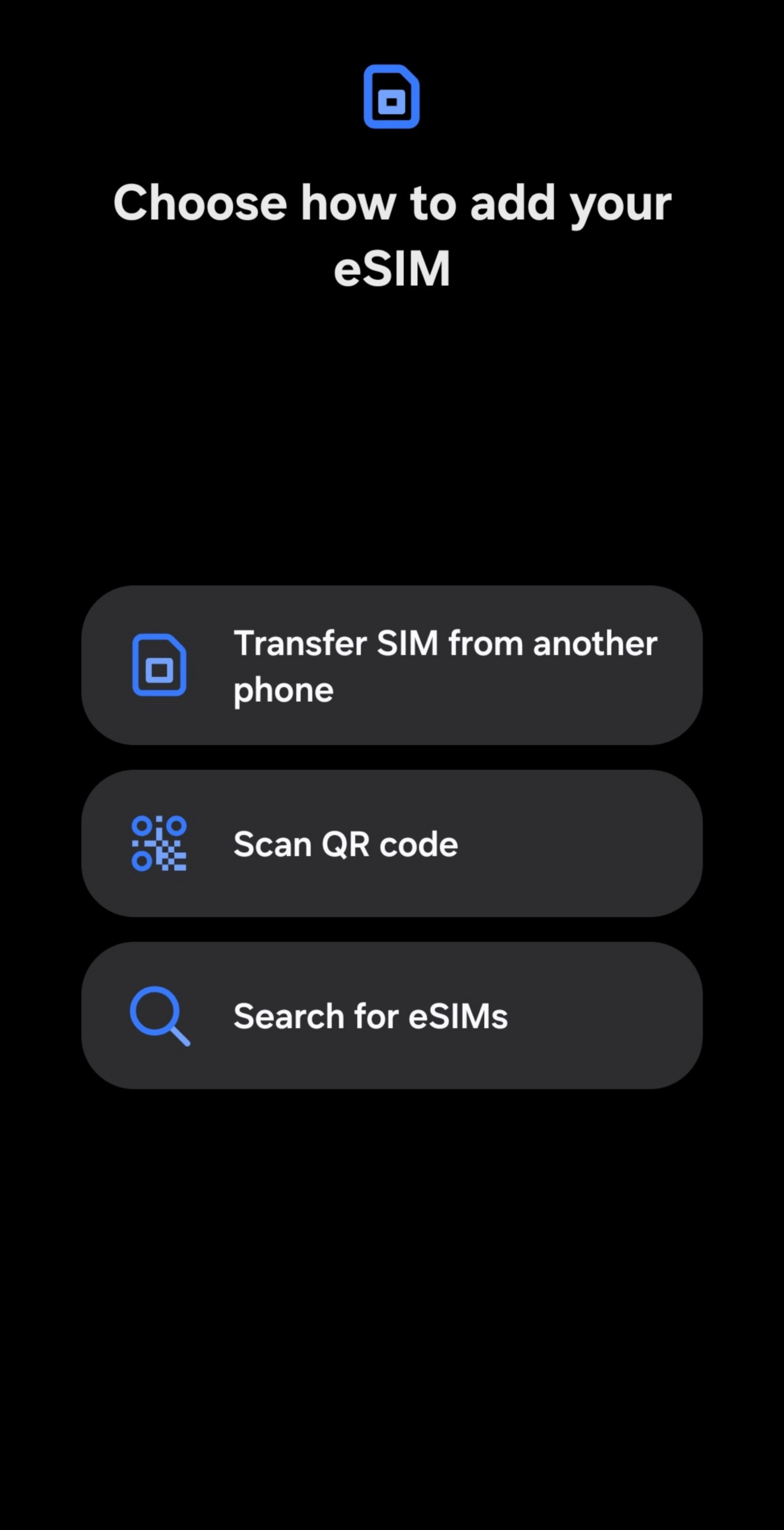
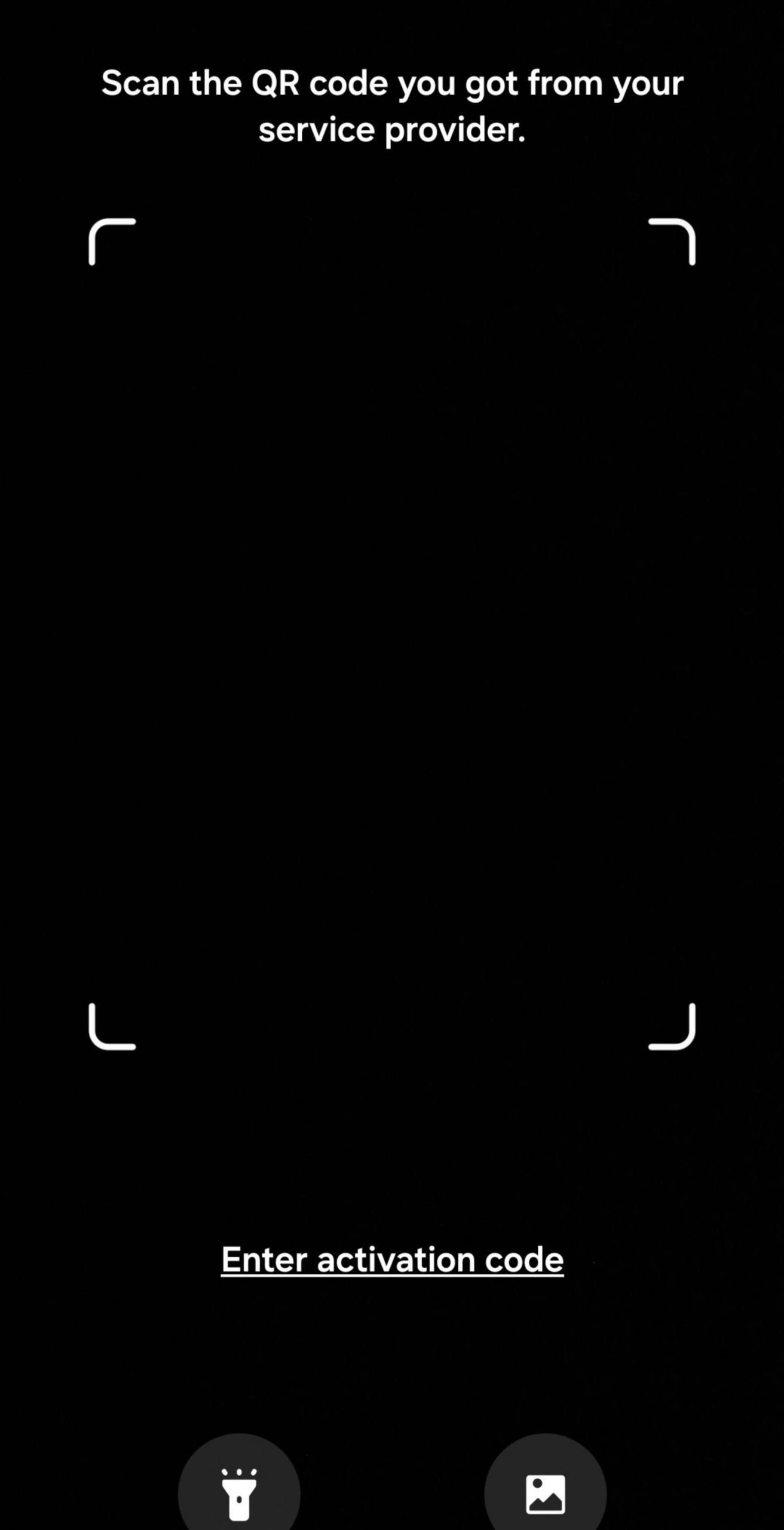
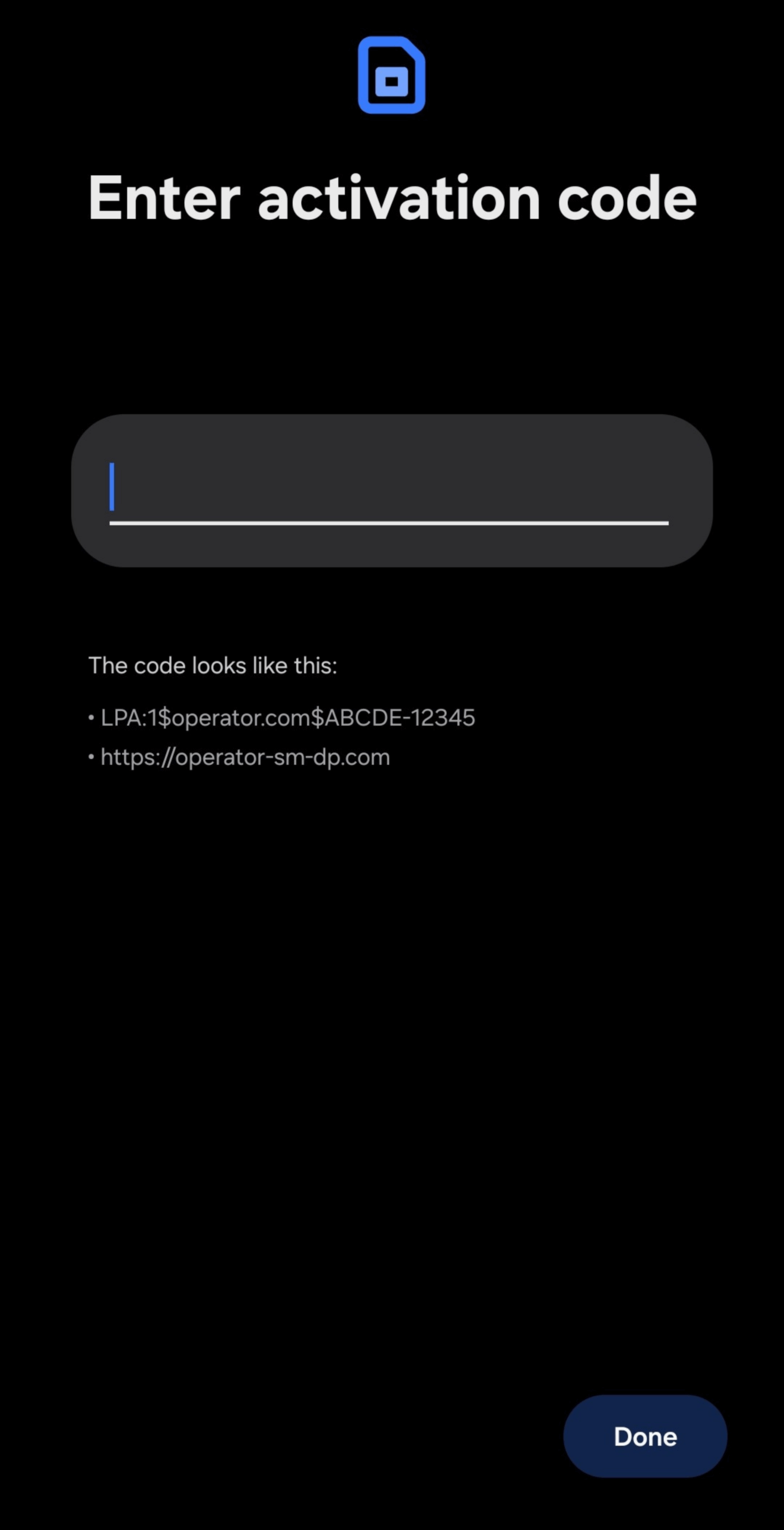
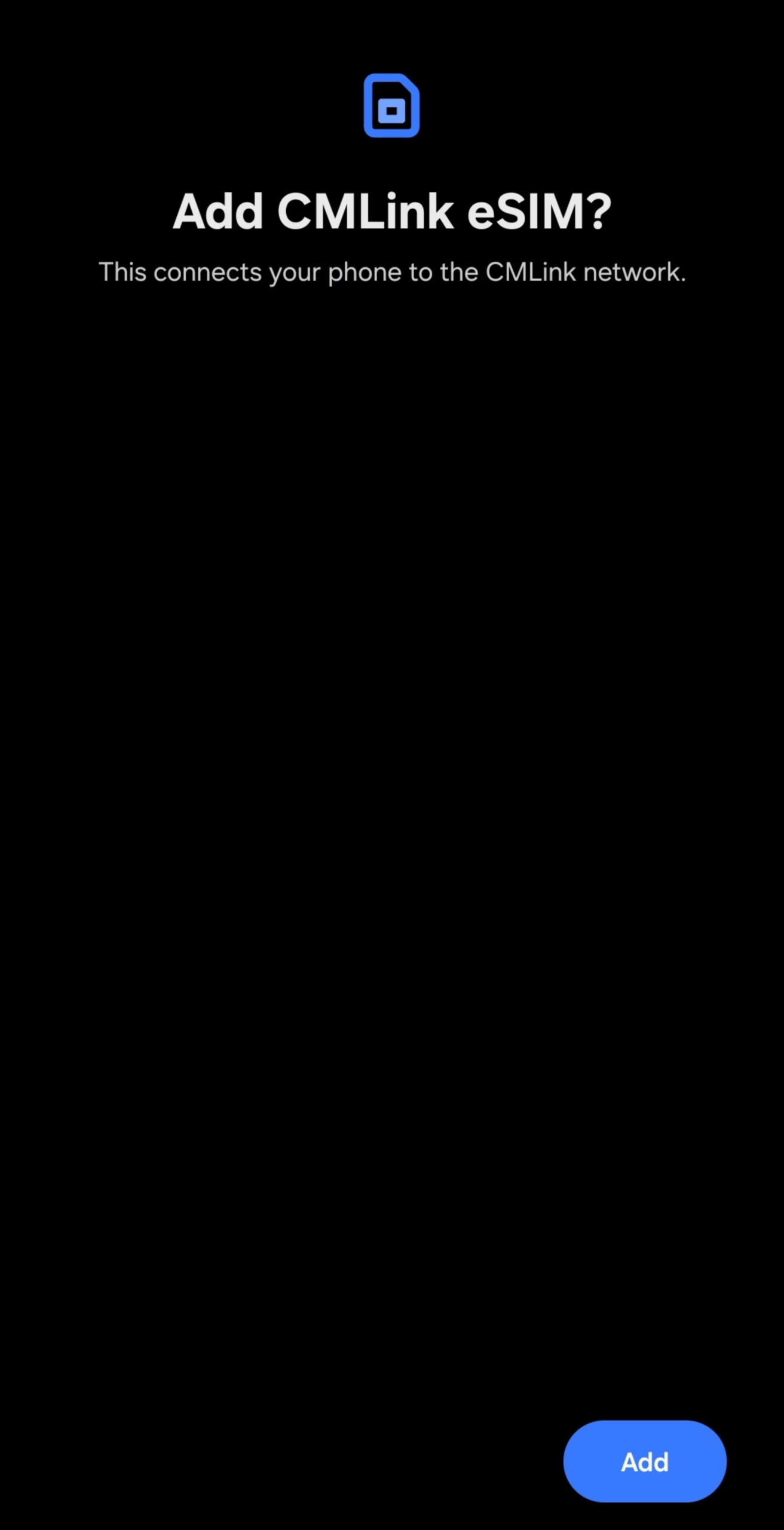
Activation codes are lengthy, so we recommend copy-pasting when possible.
If the eSIM download procedure doesn't work properly, issues may occur.
Since the cause differs between "installation failure" and "activation failure," please check the following for each scenario.
If eSIM Installation Fails
- Check storage capacity
- Update software to the latest version
- Delete unused old eSIMs
- Temporarily disable security apps
Common Installation Error Messages
"Cannot add mobile plan"
- eSIM already installed → Check in Settings
- QR code expired → Request reissue from provider
- Device is SIM locked → Complete unlock procedure with carrier
"Cannot activate eSIM"
- Unstable Wi-Fi → Retry with different Wi-Fi network
- Wrong QR code → Verify it matches your purchased eSIM
- Non-compatible device → Dial "*#06#" in Phone app to check EID
- Maximum eSIM limit reached → Delete unnecessary eSIMs
Not displayed after installation
- Installation incomplete → Reinstall with stable Wi-Fi
- Accidentally deleted → Check ICCID with provider
If the issue persists, contact your provider's support team.
If eSIM Activation Fails
Stuck on "Activating..."
- Before travel: Automatically completes upon arrival in destination (may take several hours)
- Still unchanged after arrival → Toggle Airplane mode ON/OFF or restart device
"Cannot activate eSIM" error
- Not connected to local network → Retry after arriving at destination
- Check if eSIM is selected for mobile data
- No eSIM shown in mobile data settings → Reinstall with Wi-Fi connection
If still unresolved
- Verify your purchased eSIM plan is within validity period
- Contact provider support
<article class="galaxy-esim-roaming" style="margin-top: 50px;">
Settings for International Use
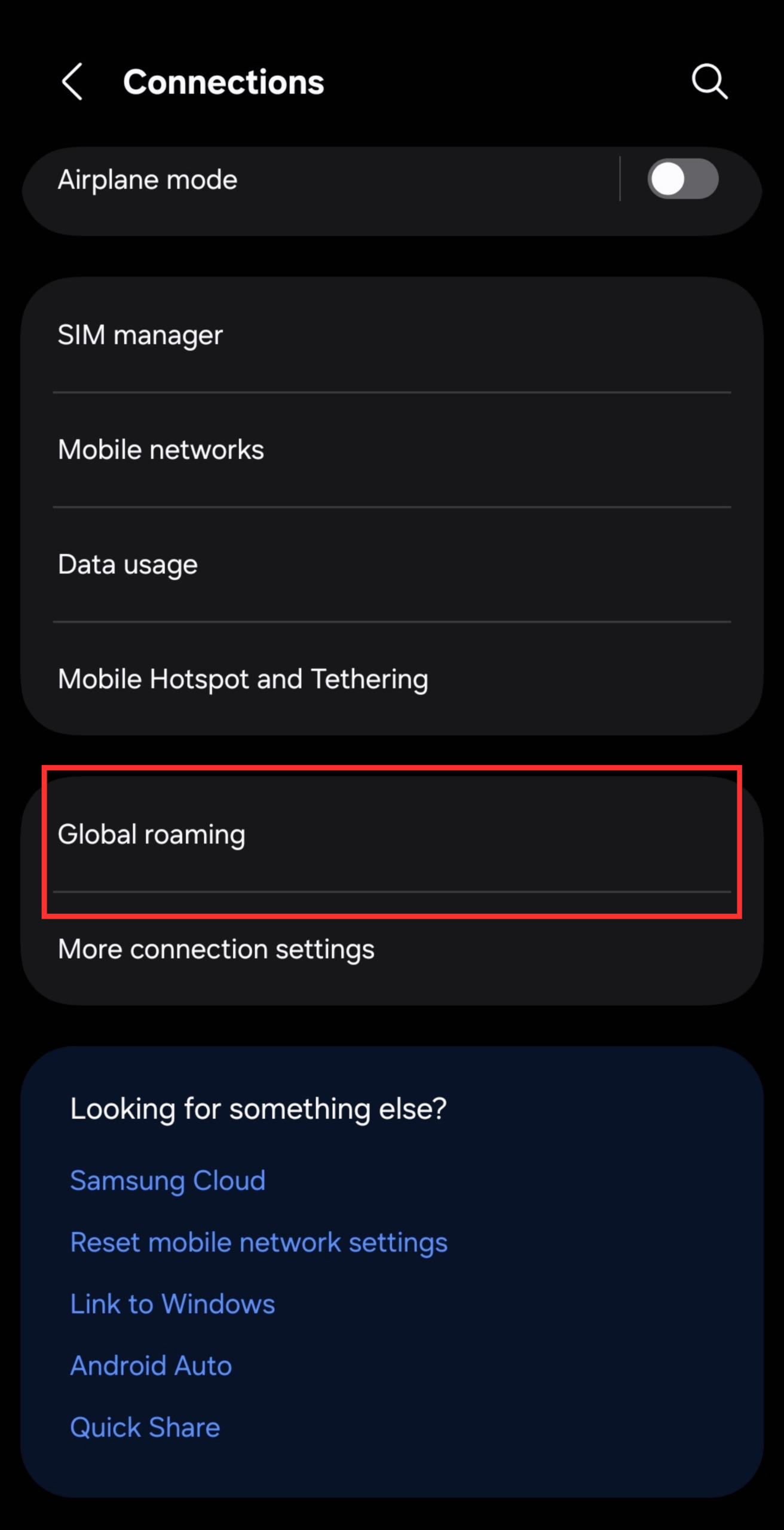
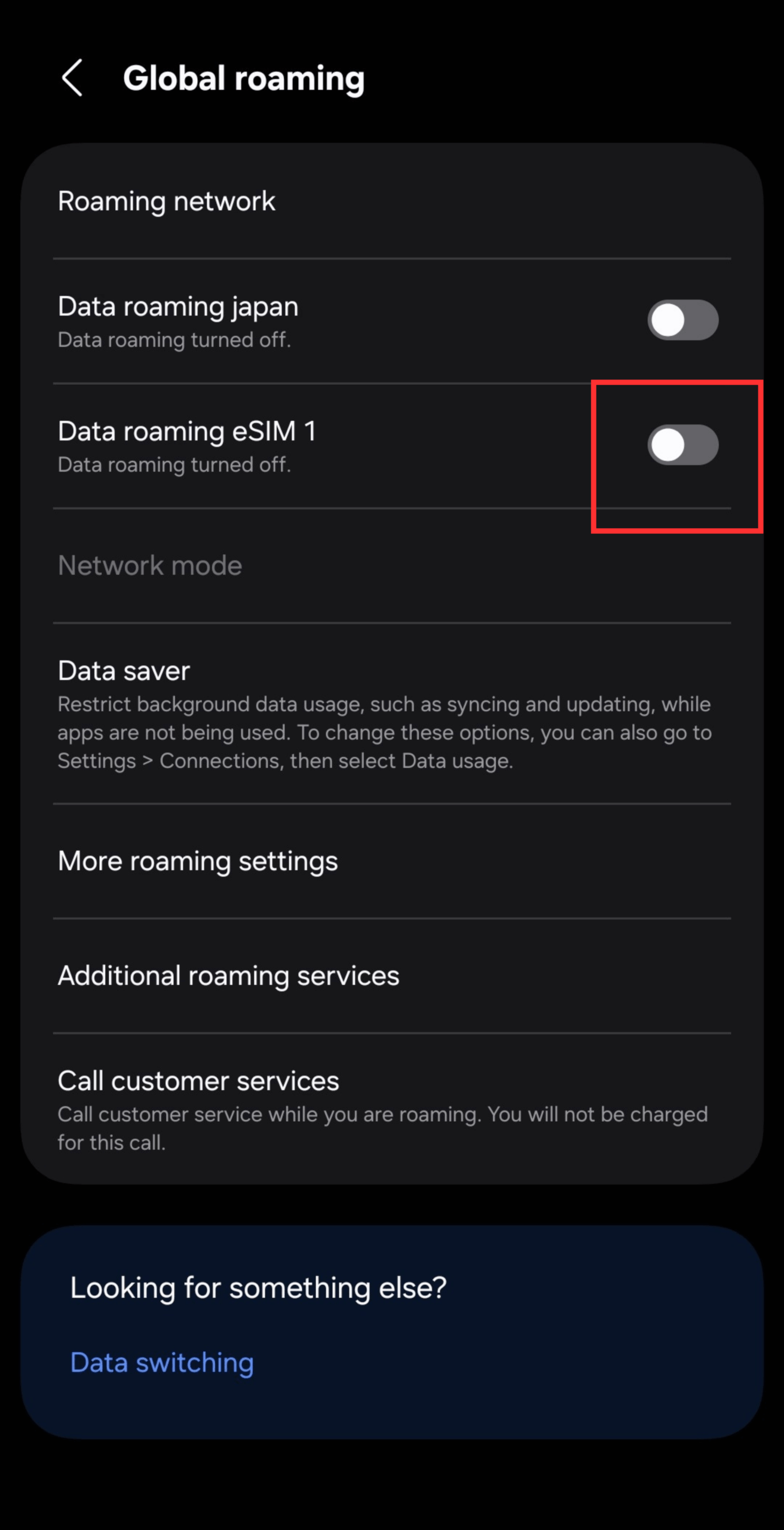
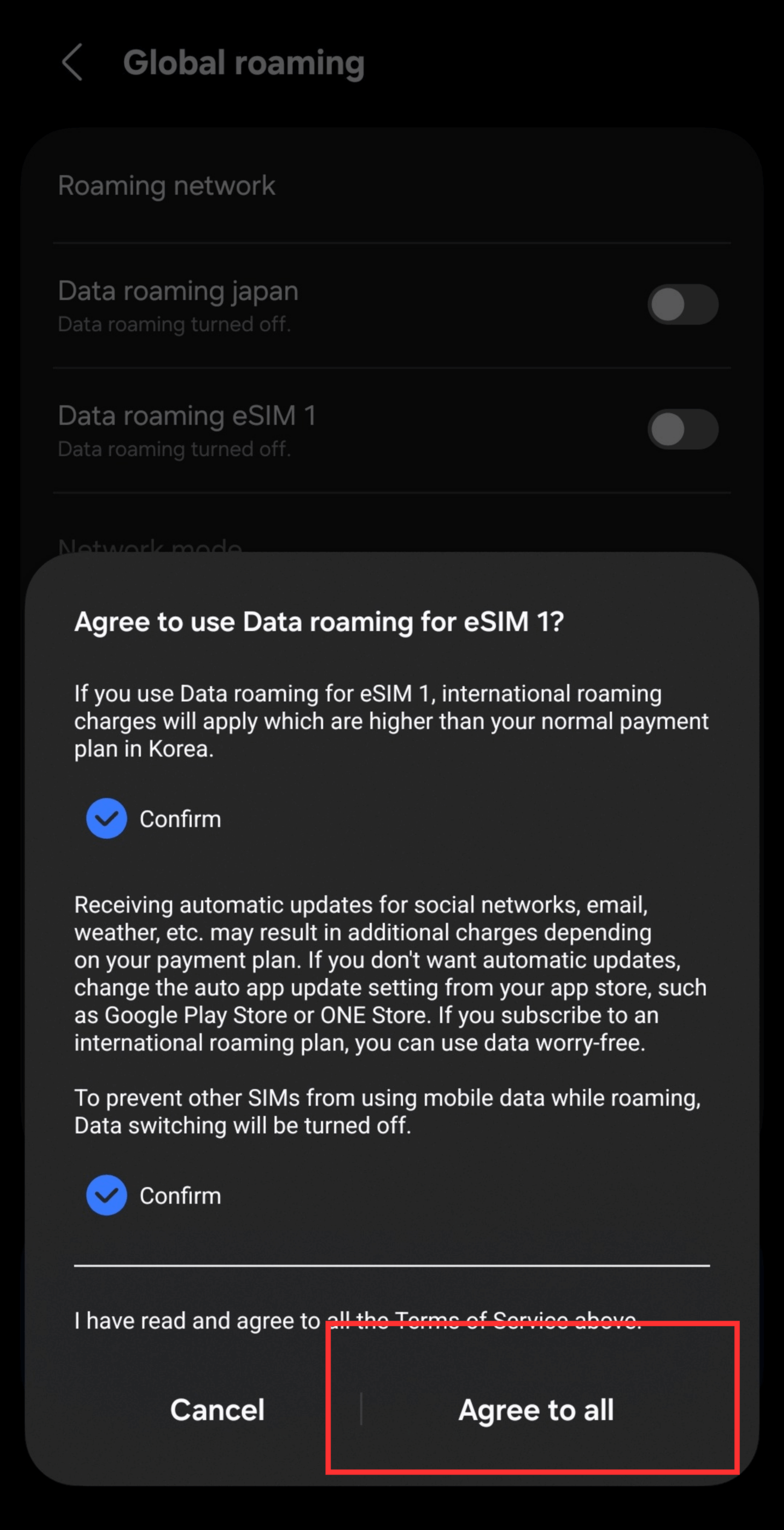
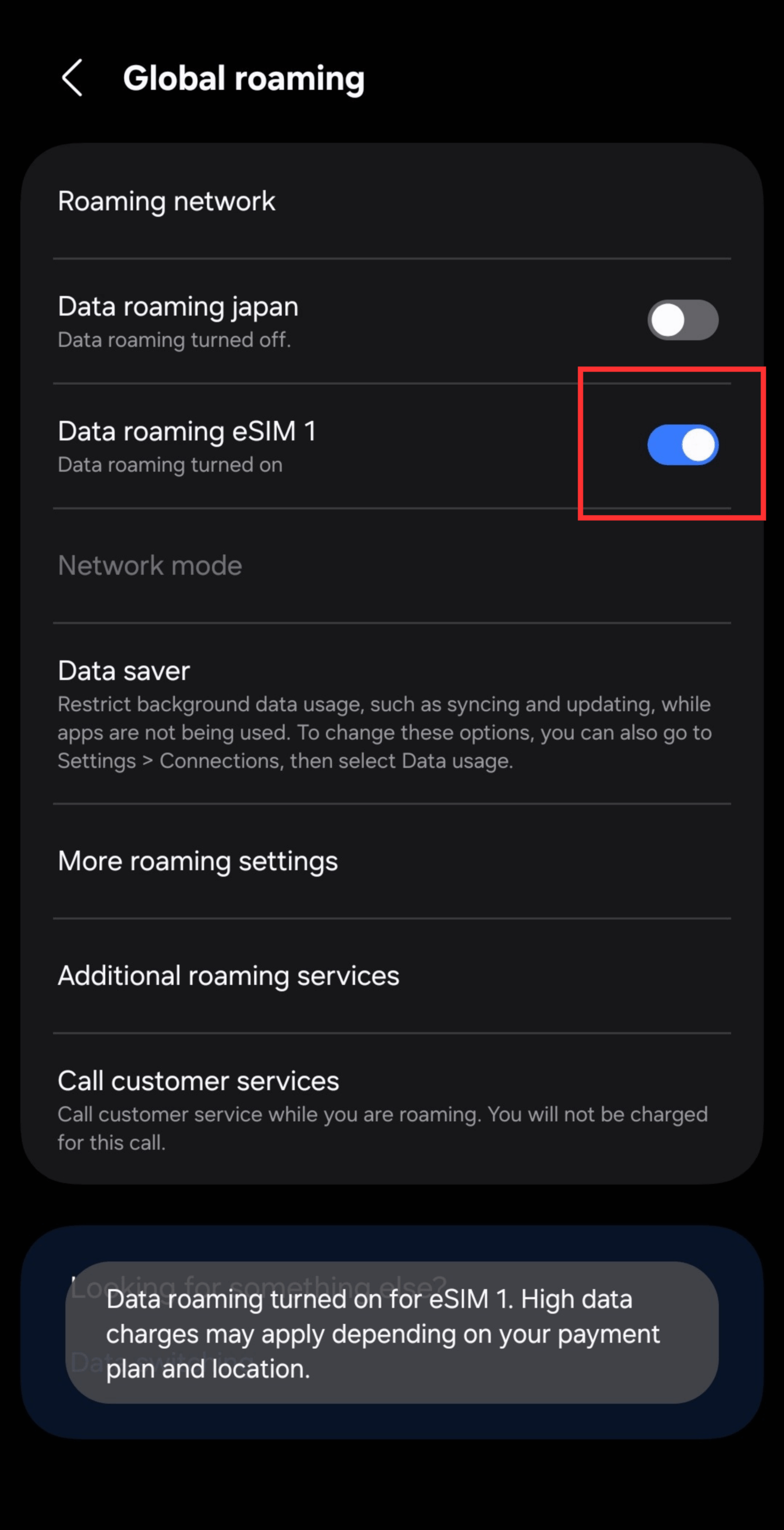
When using an eSIM for international travel or business trips, you need to turn on Data Roaming. The setup is simple and can be completed quickly at your destination.
Data Roaming Configuration
How to Switch Between Physical SIM and eSIM
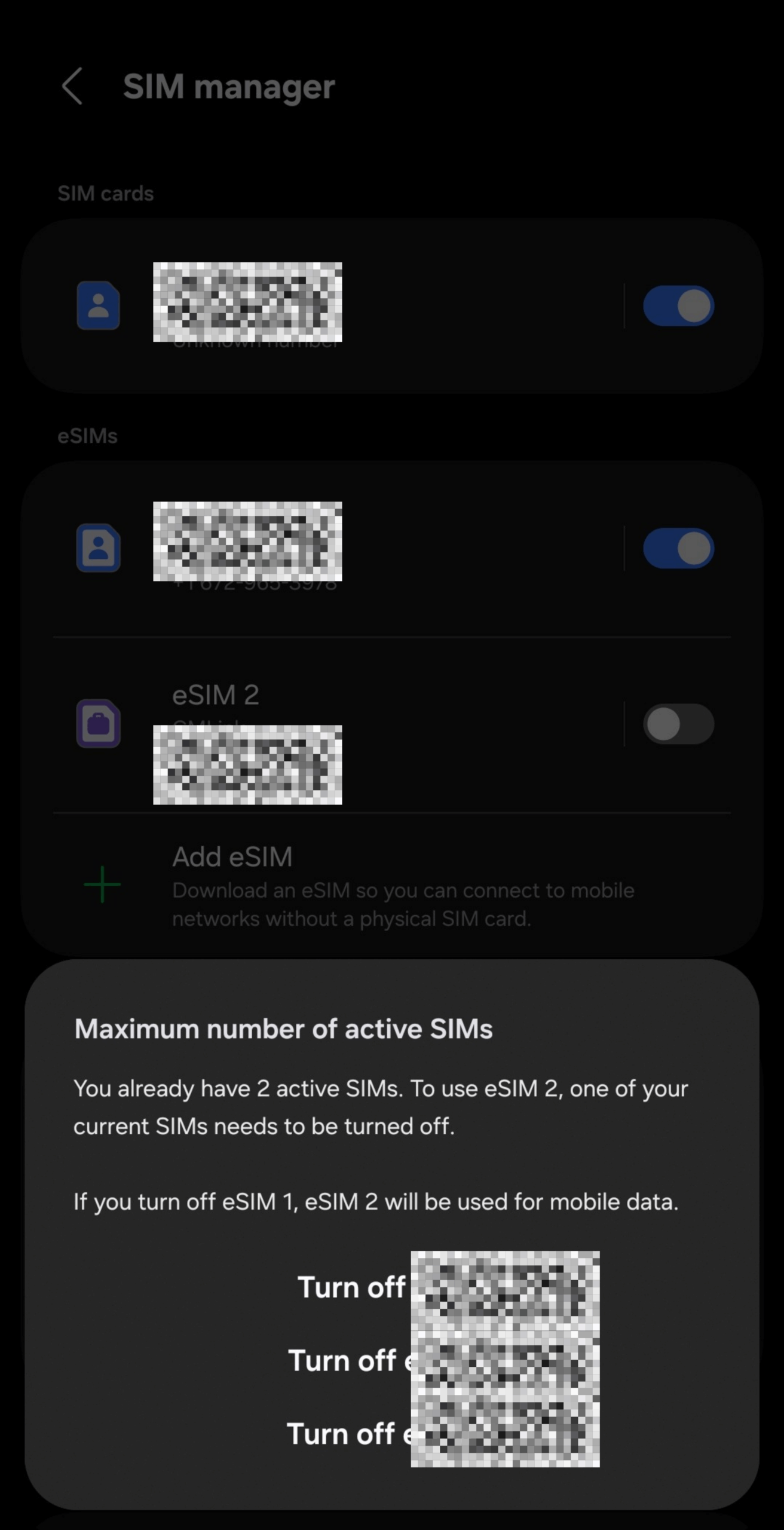
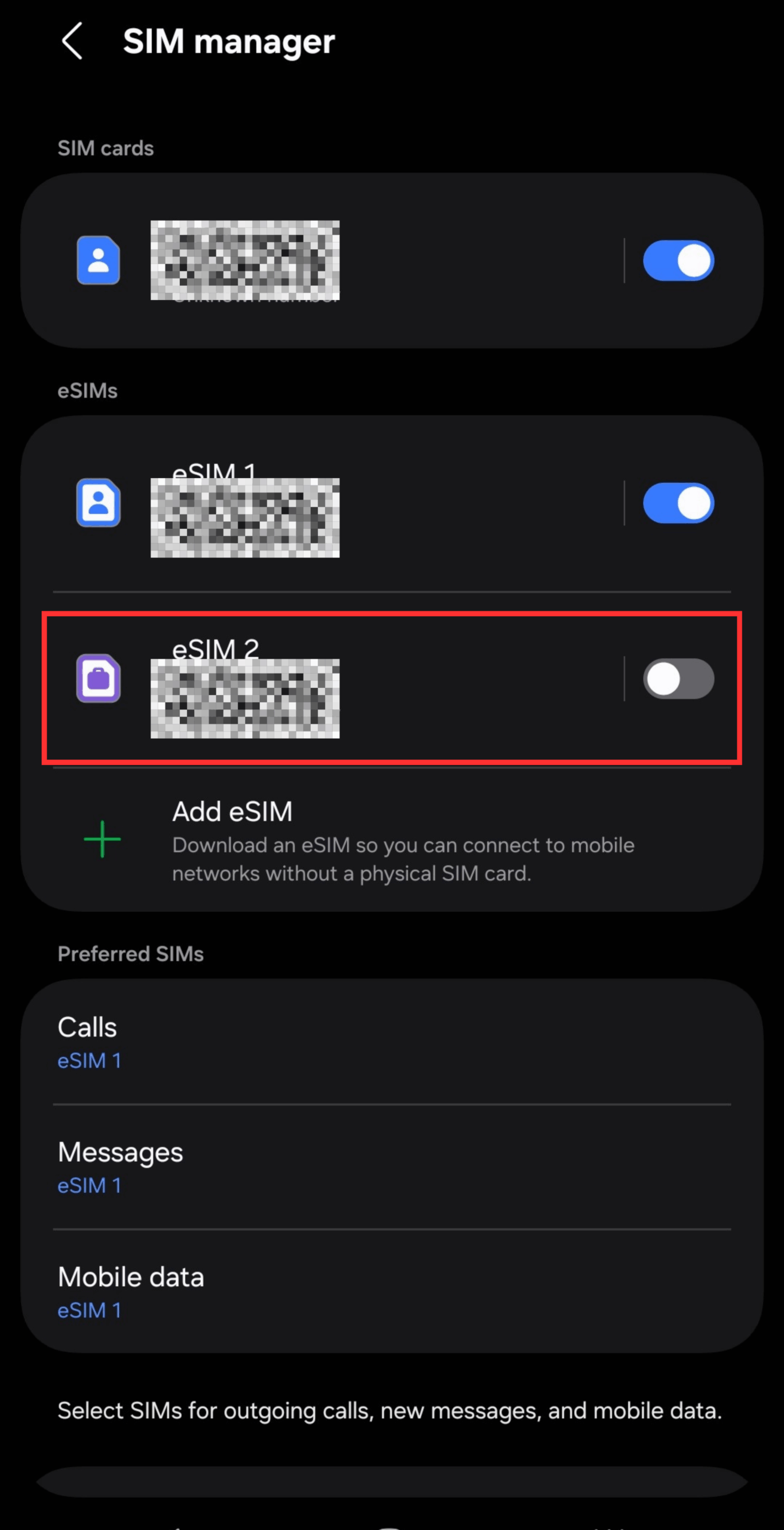
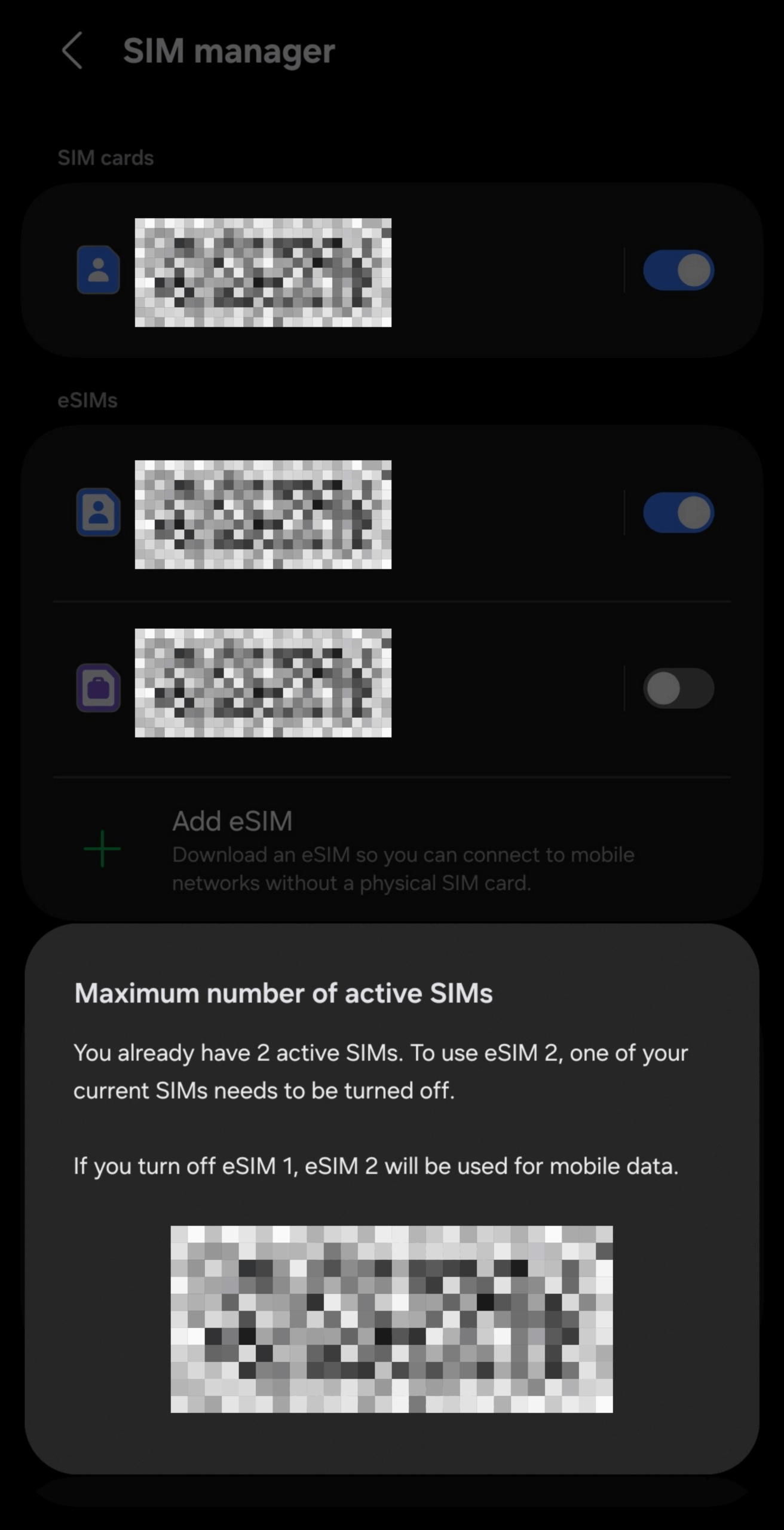
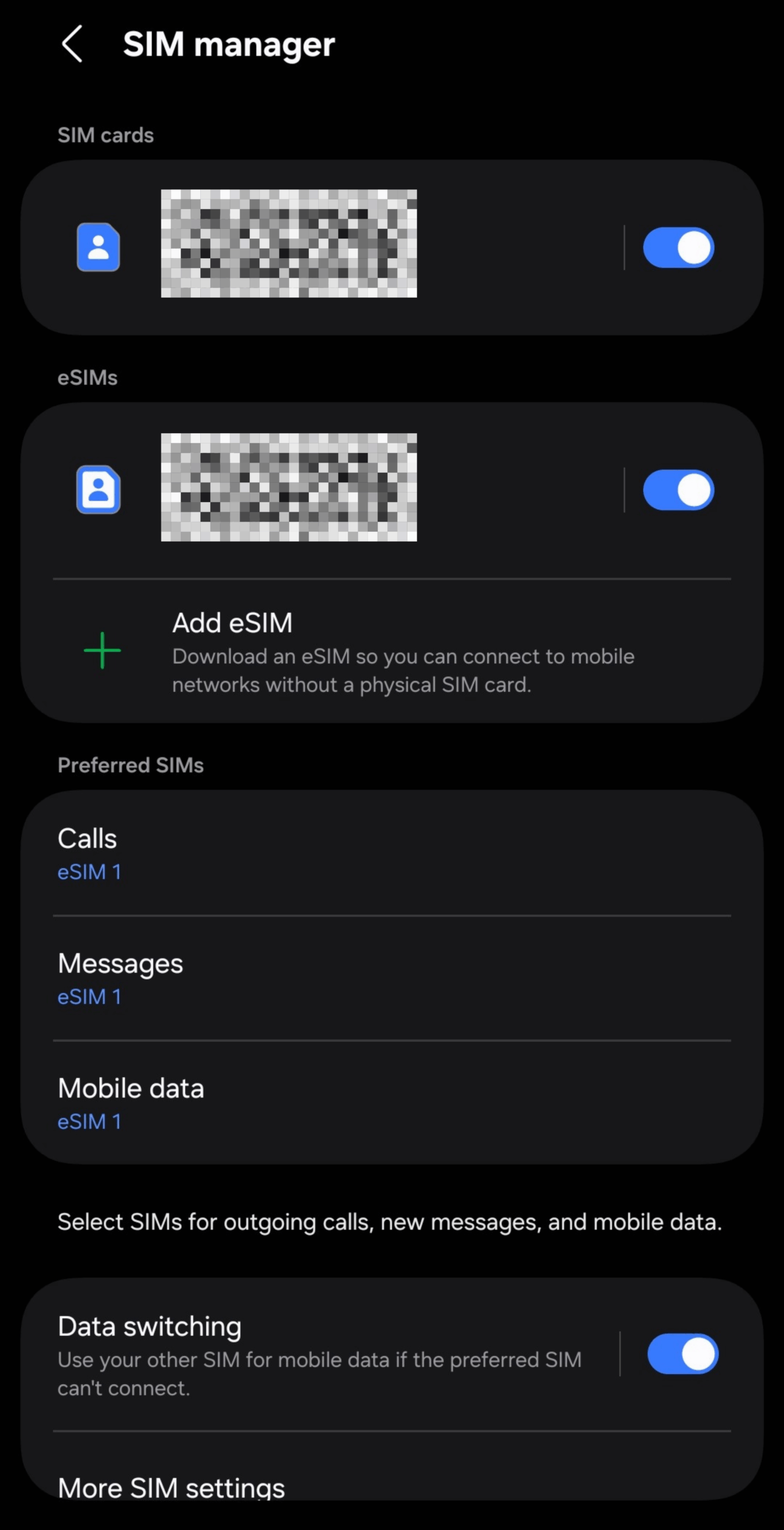
Galaxy's dual SIM support varies by model. Galaxy S24 series and later support both the combination of 1 physical SIM + 1 eSIM, as well as simultaneous use of 2 eSIMs.
In contrast, models prior to 2024, such as the Galaxy S23 series, do not support dual eSIM configurations and only allow 1 physical SIM + 1 eSIM.
Please verify your device's dual SIM compatibility on Samsung's official website or through your carrier.
Basic Switching Procedure
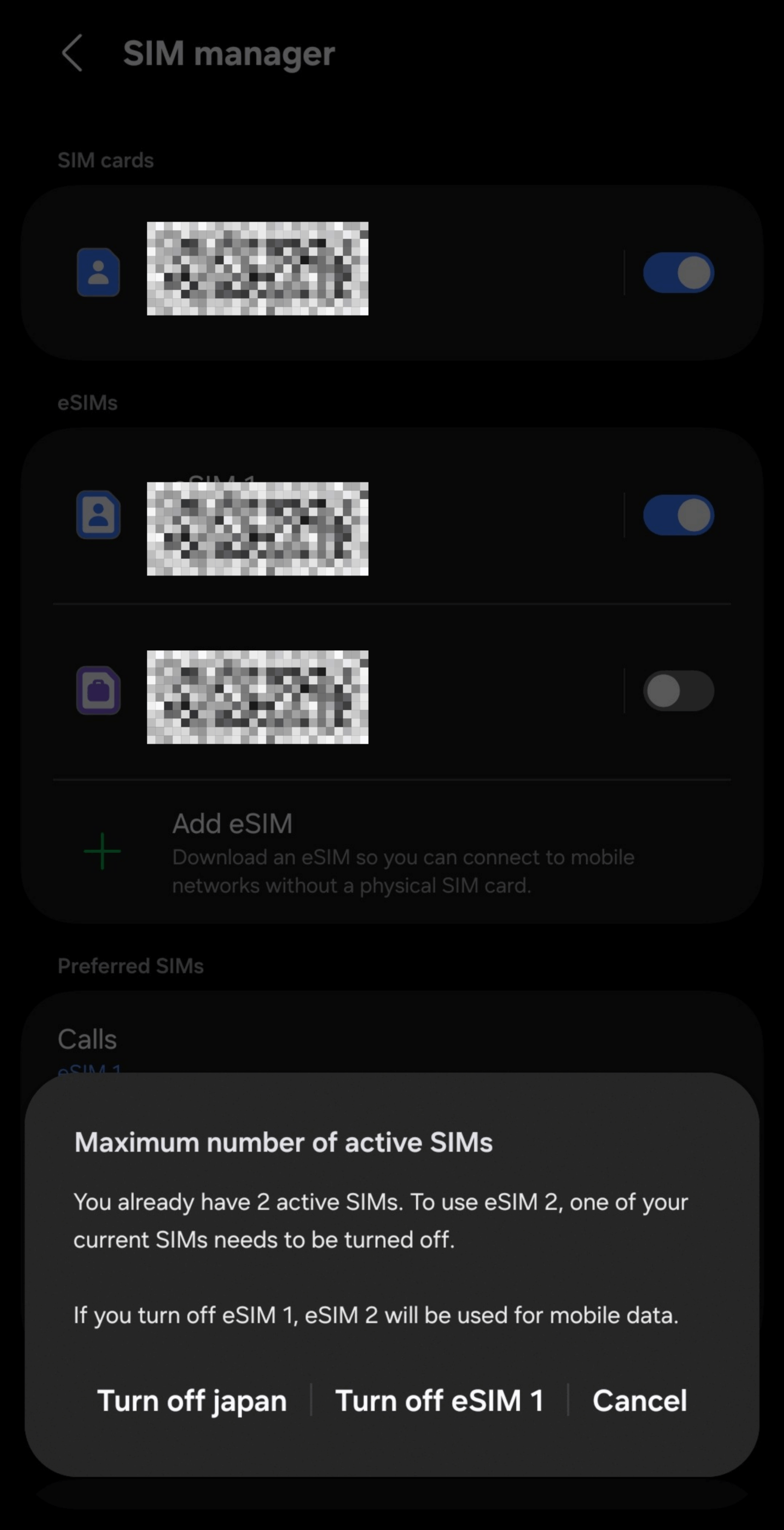
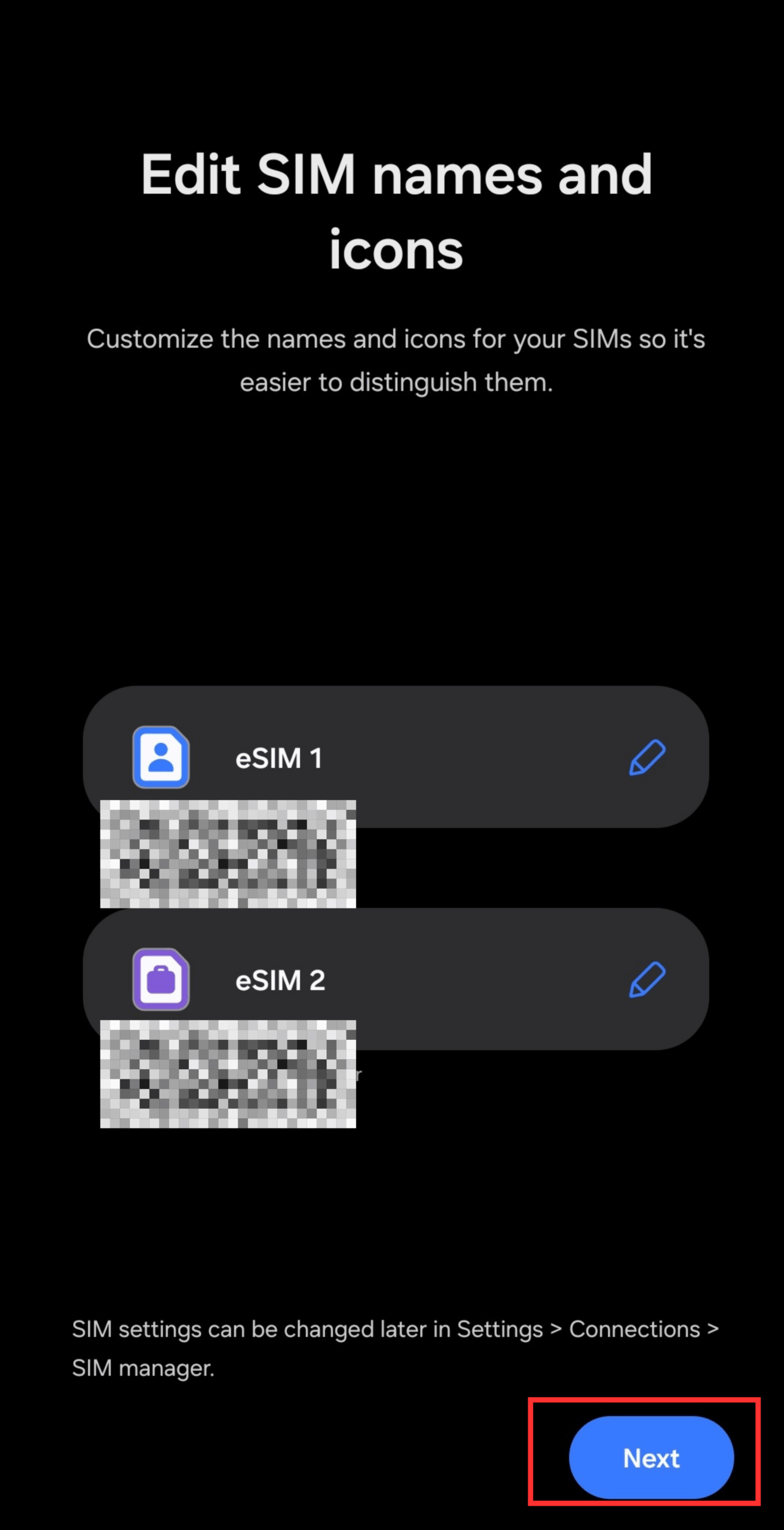
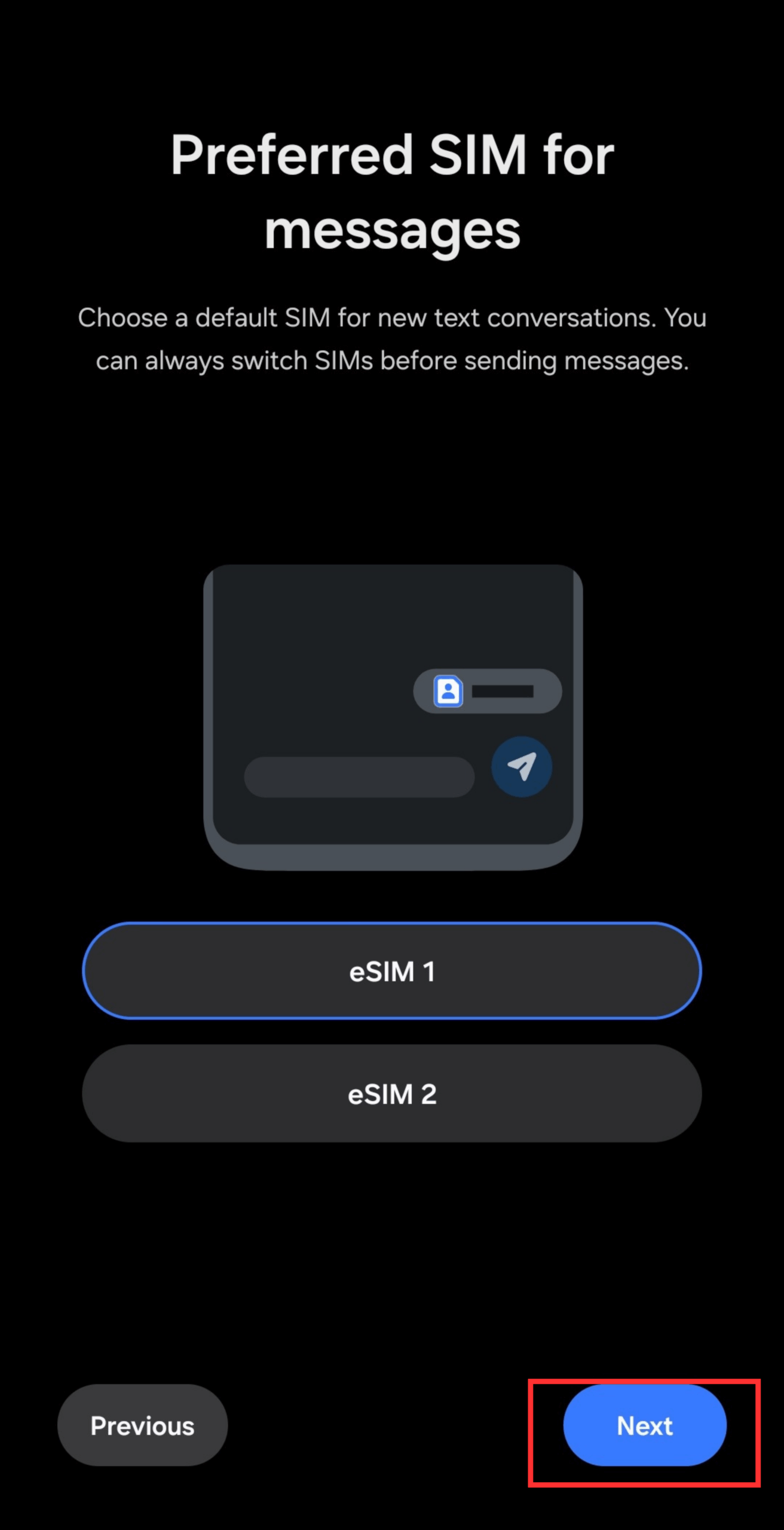
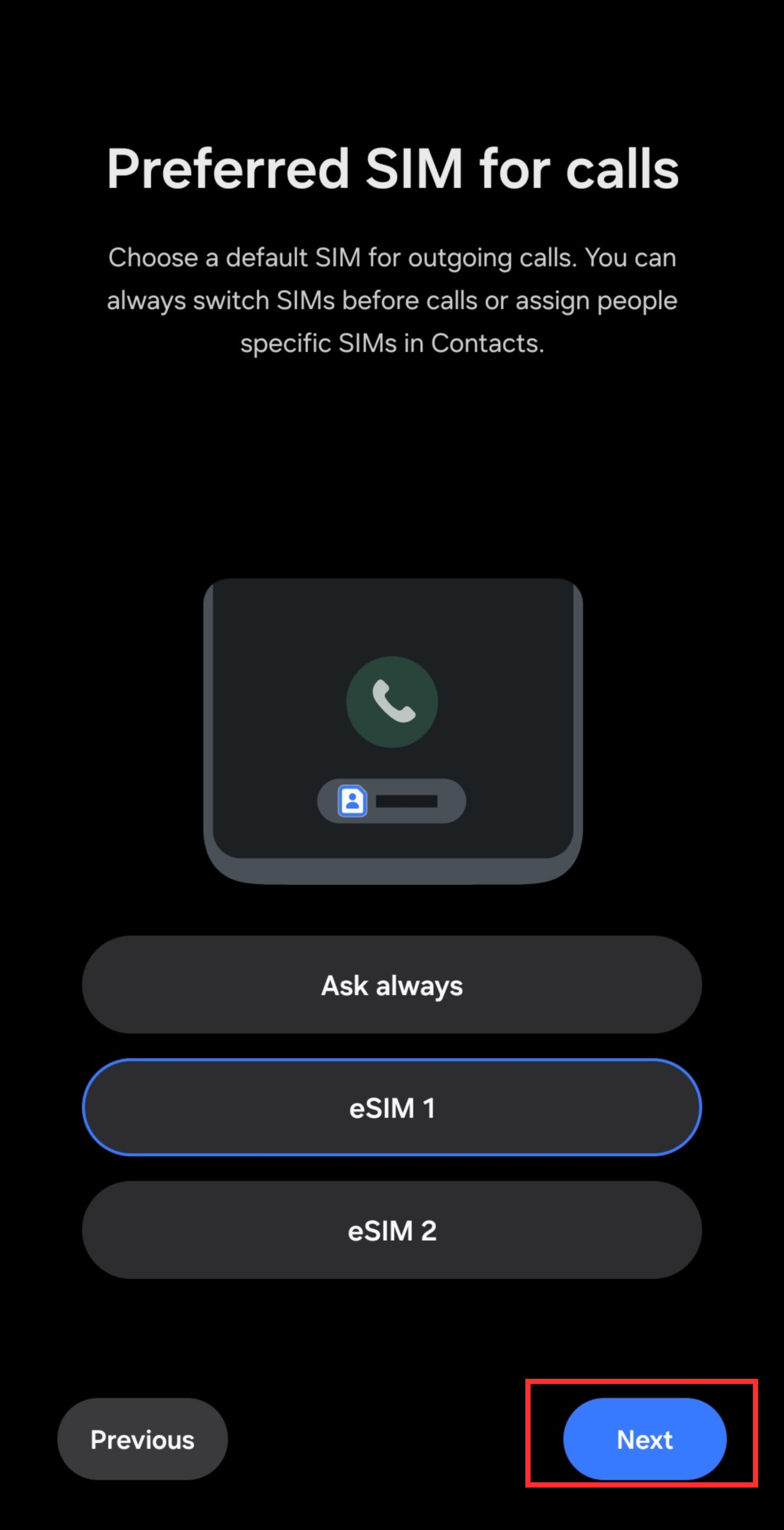
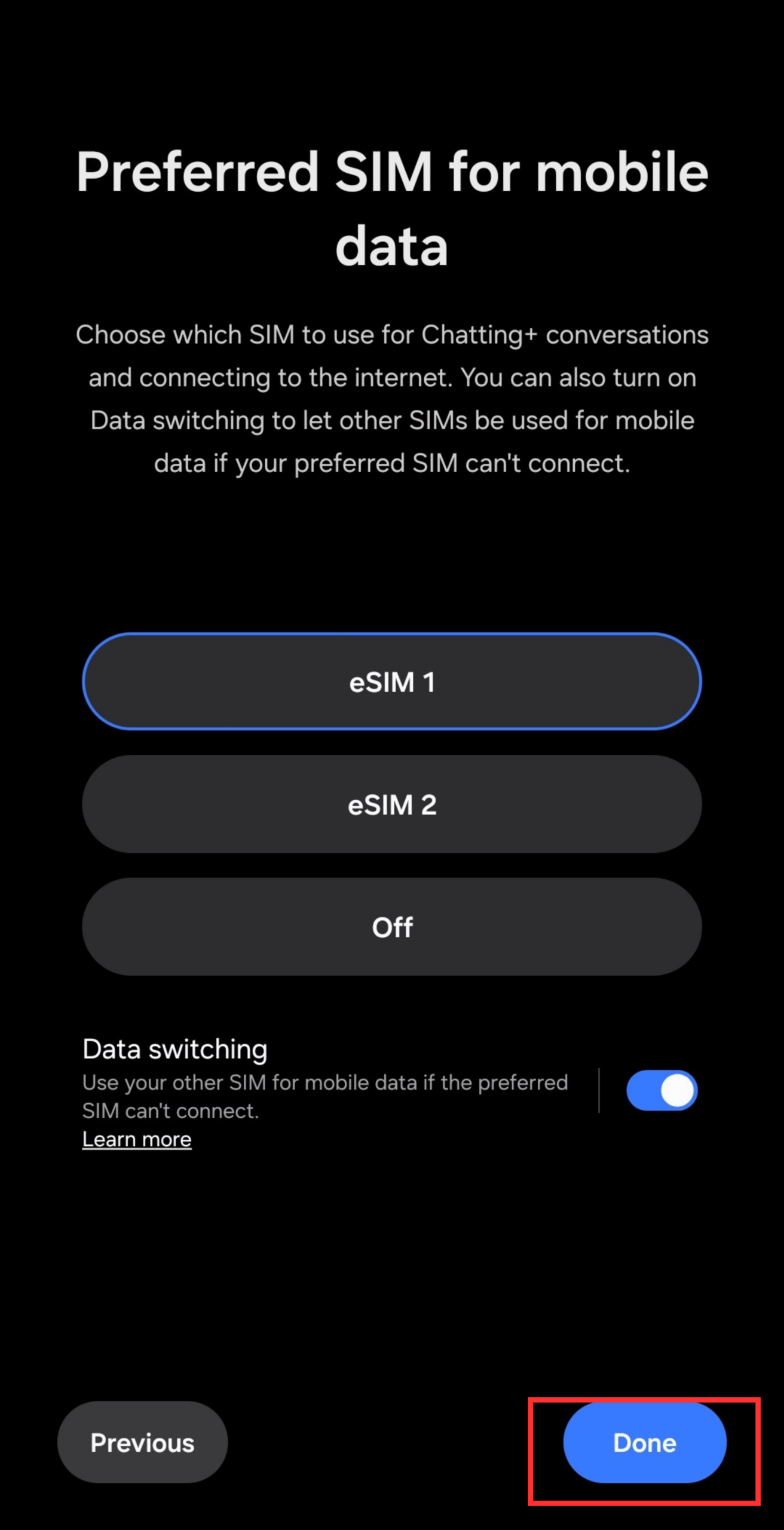
Additionally, you can set different preferred SIMs for calls, messages (SMS), and mobile data, allowing you to customize usage based on your needs.
With this configuration, you can separate work and personal lines. Galaxy smartphones can store multiple eSIM profiles (typically 5-7).
Important Note
Pro Tip for Travelers
Deletion Procedure
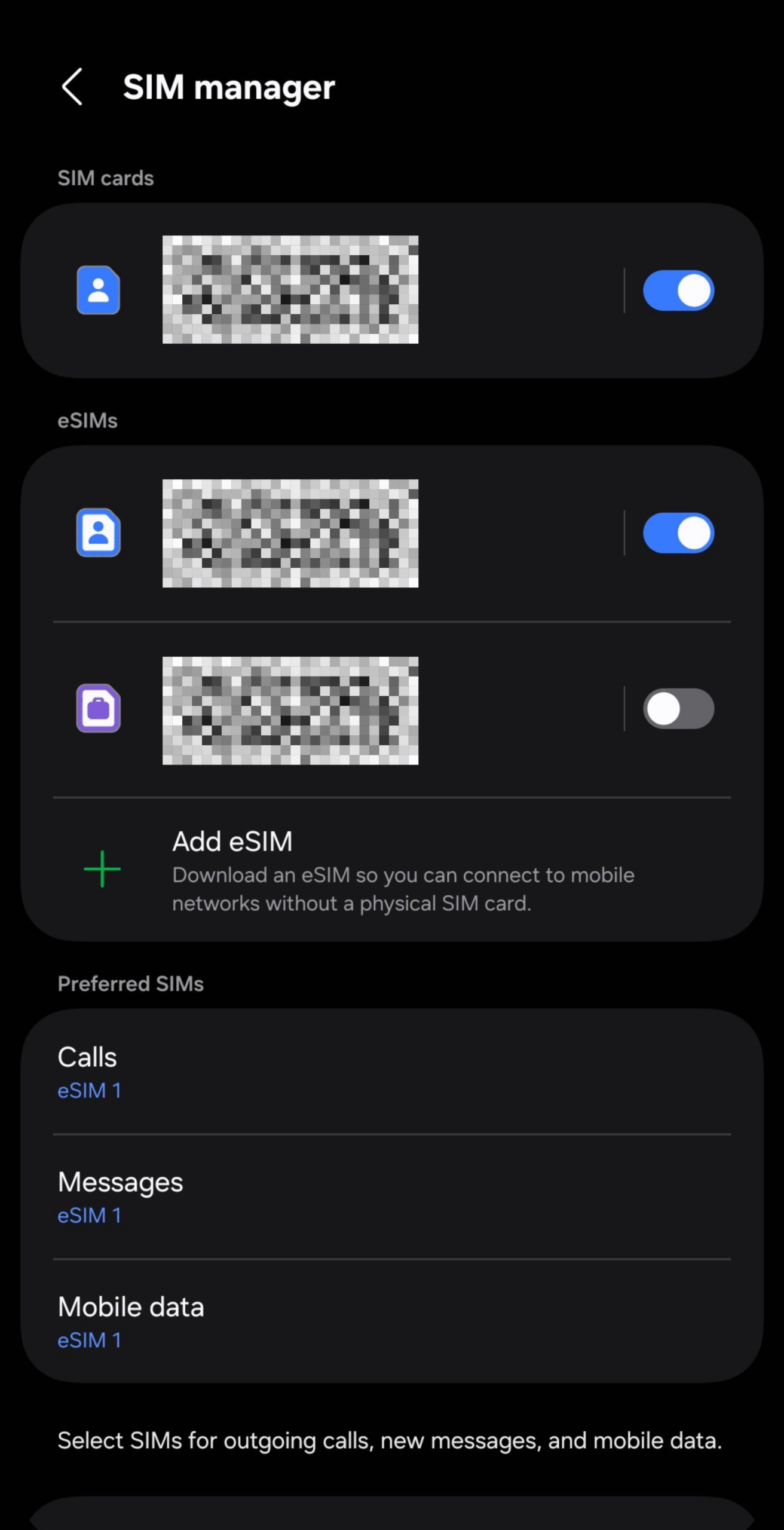
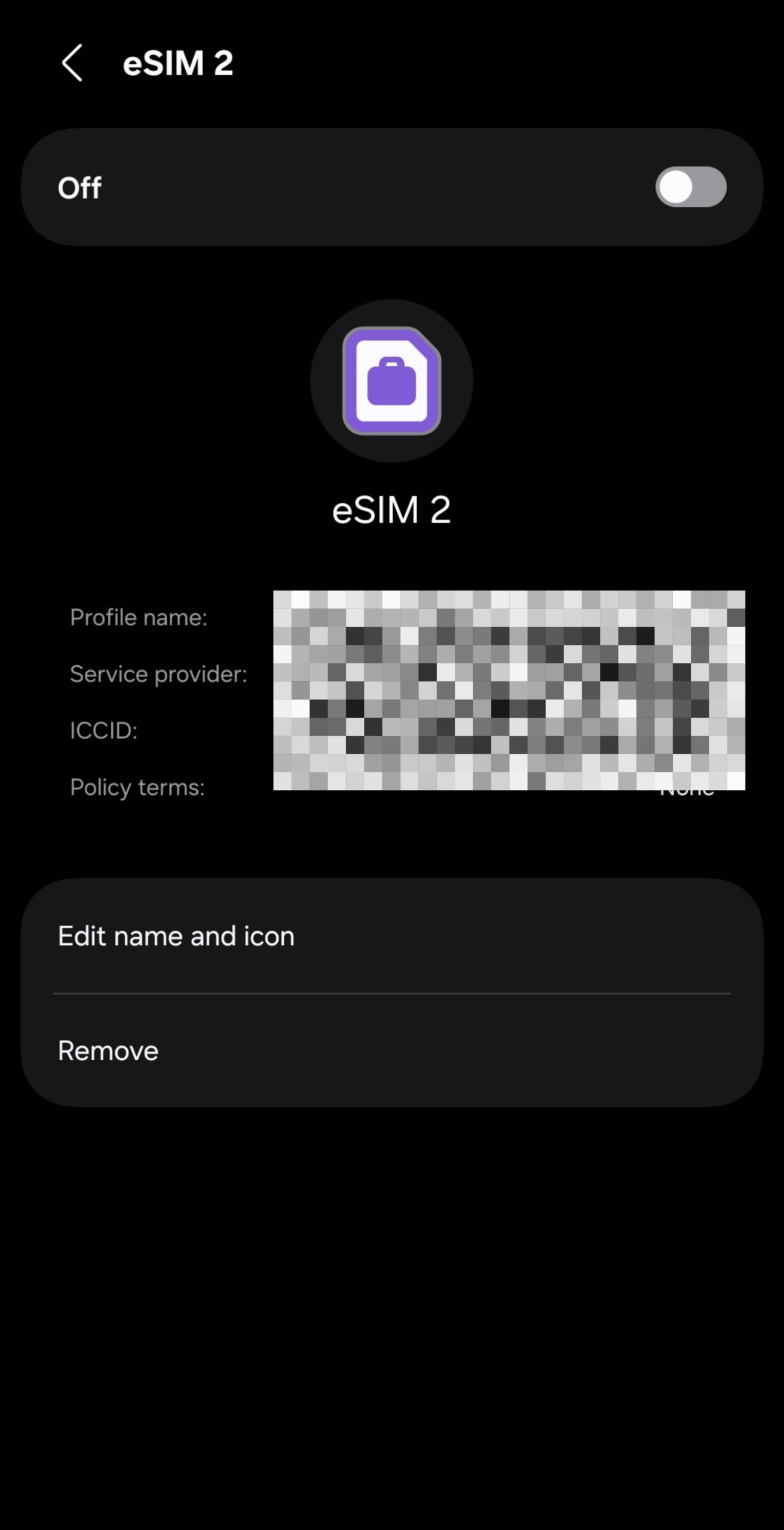
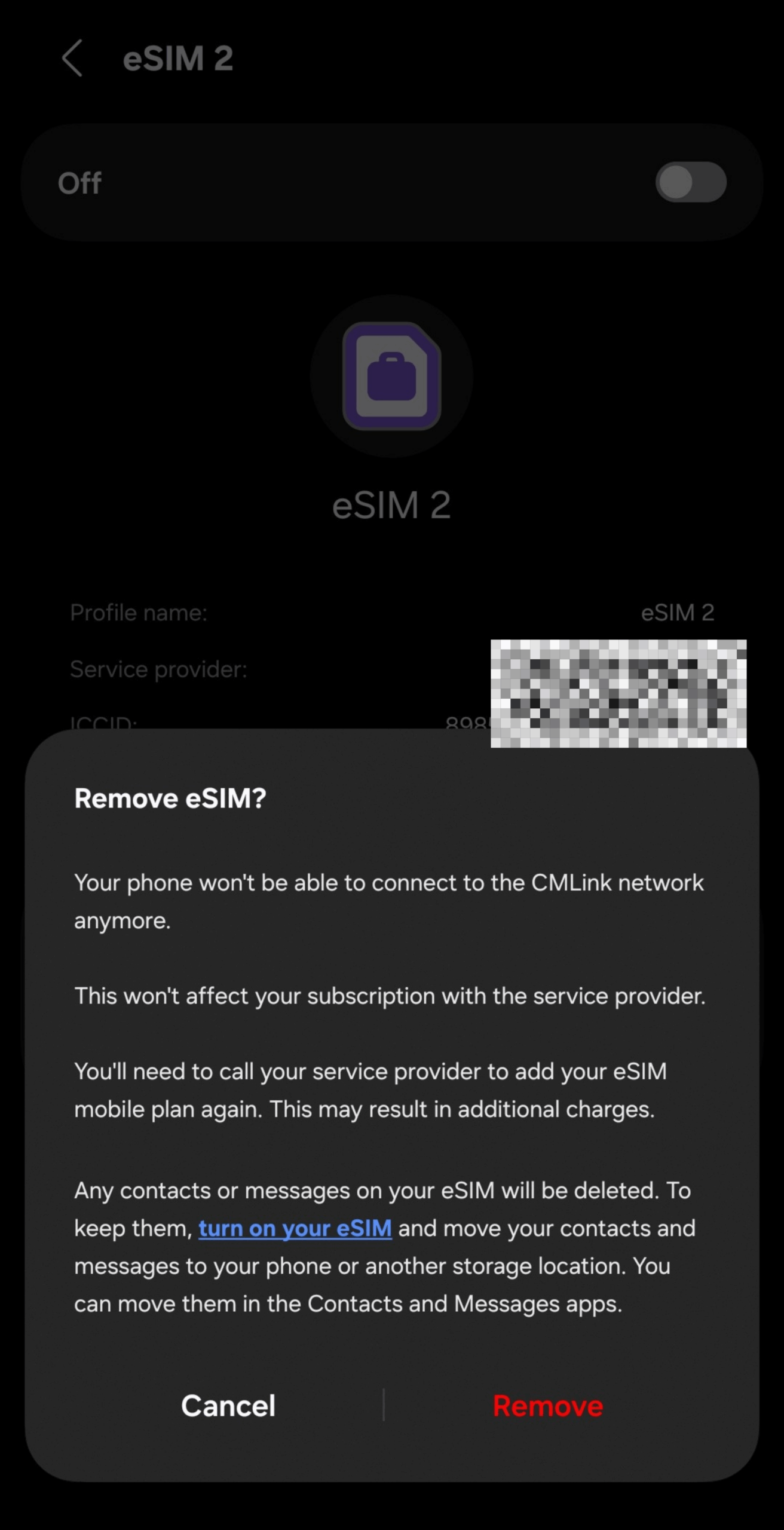
※Deleting an eSIM does not cancel the service contract itself. If you wish to terminate the contract, separate procedures with your carrier are required.
Device Transfer (Android eSIM Transfer)
Between Galaxy devices, you can use the "Transfer SIM from another device" feature. This is also compatible with carrier services like "Android eSIM Transfer," enabling transfers between Galaxy and Pixel devices.
However, Android 14 or later is required. If your OS version is outdated, please update it first.
As of November 2025, Android eSIM Transfer is supported by major carriers in various regions. However, some carriers and MVNOs may not support this feature.
International travel eSIMs do not support quick transfer. To use on a new device, you'll need to obtain a new QR code from your eSIM provider.
For International Travel eSIM Users
Troubleshooting When Connection Fails
While eSIM installation may succeed, there are cases where connectivity fails upon arrival at your destination. Since various factors can cause this, please refer to the following solutions.
When eSIM Is Not Recognized
This occurs when the "Add eSIM" option is not displayed.
Non-Compatible Device
First, verify device compatibility again. Galaxy S20 series and later, as well as all Galaxy Z Flip and Z Fold models, support eSIM.
However, the S20 FE and older A Series models vary in compatibility, requiring careful verification.
Since "I thought it was compatible" cases are very common, always check Samsung's official website.
SIM Lock Not Removed
For carrier-purchased Galaxy devices, SIM unlock may be required. Unlock procedures can be completed free of charge through carrier websites or customer service.
Outdated Software
Update to the latest version through Settings → Software update. This often resolves the issue.
When Data Connection Fails
This occurs when the signal indicator appears but internet connection is unavailable.
Check if Data Roaming Is Enabled
Verify through Settings → Connections → Mobile networks. If this setting is OFF when using international eSIM, data connection will fail.
Verify Correct SIM Selection for Mobile Data
When using multiple SIMs, another SIM may be selected. Check in SIM Manager.
Try Toggling Airplane Mode
This basic method often establishes connection successfully.
Manually Select Network
If automatic selection fails, manually selecting the network operator may establish connection.
If issues persist, try "Reset network settings." This can be accessed through Settings → General management → Reset → Reset mobile network settings.
Note that this operation will also delete Wi-Fi passwords, so note them down beforehand.
When QR Code Cannot Be Scanned
Low screen brightness may prevent scanning. First, maximize brightness. If scanning still fails:
- Switch to manual entry method
- Display QR code on a different device
- Request QR code reissue from provider
When Download Fails
Verify Wi-Fi connection stability. Unstable connections cause failures. We recommend operating near the router. Waiting and retrying can also be effective.
If issues persist, contact provider support. Server-side problems may be the cause.
Frequently Asked Questions
We've compiled commonly asked questions about eSIM. Please use this as a reference!
Can I Use 2 eSIMs Simultaneously on Galaxy?
This depends on the model.
Galaxy S24 series and later support simultaneous use of 2 eSIMs. However, Galaxy S23 series and earlier models do not support dual eSIM usage. Only 1 physical SIM + 1 eSIM combination is supported.
Please verify your device's compatibility on Samsung's official website.
Do All Galaxy Devices Purchased Domestically Support eSIM?
No, not all models are compatible.
While many Galaxy upper-tier models such as S20 series and later S Series, and Z Fold/Z Flip series support eSIM, compatibility varies depending on model, sales region, and carrier specifications.
- M Series: Most models generally do not support eSIM
- S20 FE (Fan Edition): Often listed as non-compatible
- Older A Series models: Many cases of limited eSIM support, though complete "non-compatibility" is difficult to definitively state
For reliable verification, dial "*#06#" in the Phone app and check if a 32-digit EID appears.
To prevent issues like "I signed up thinking it was compatible but couldn't use it," always verify before purchase and use.
Can I Use eSIM Without SIM Unlock?
No, you cannot. eSIM usage requires either a SIM-free device or a SIM-unlocked device.
Unlock procedures can be completed free of charge through carrier customer portals.
Can I Restore an eSIM After Deletion?
Most travel eSIMs cannot be reinstalled using the same QR code once deleted.
However, some eSIM services allow limited reinstallations on the same device with usage restrictions. Before deletion, always verify your eSIM provider's reinstallation conditions.
If you delete a carrier eSIM (such as from major carriers), reissue procedures are required. Reissue fees may apply.
Accidentally deleting eSIM during international travel may result in loss of connectivity. Exercise caution when selecting "Remove" in the settings menu.
What Happens When Data Allowance Is Exhausted?
Response varies by provider, but typically service becomes unavailable or switches to reduced-speed data.
Some services allow additional data purchase. Check your provider's app or website.
Can I Use eSIM on Galaxy Watch?
Yes, it may be possible. For example, Galaxy Watch 4 and later "cellular models (LTE/eSIM compatible versions)" and subsequent models (Watch 5/6/7/Ultra, etc.) are often eSIM-compatible.
However, depending on sales region, carrier, and model (Wi-Fi vs. cellular), eSIM may not be available. Before purchase/use, always verify whether it's a "cellular model" and whether your "carrier supports eSIM contracts for that model."
Additionally, since setup procedures differ from smartphones, configuration through apps like "Galaxy Wearable" or carrier eSIM contracts/additional plans may be required.
Can I Switch from eSIM Back to Physical SIM?
Yes, you can. Request physical SIM reissue from your carrier to switch back. Note that fees may apply.
Conclusion
This article has provided detailed explanations of eSIM-compatible Galaxy smartphone models and setup procedures.
eSIM is a convenient service that eliminates the need for physical SIM card replacement and allows instant online activation. Even if you initially felt it was "too complicated," you can now see how easy it is to configure simply by scanning a QR code.
If you're considering international travel or adding a secondary line, we encourage you to try Galaxy eSIM. When encountering setup difficulties, refer to the troubleshooting section of this article for smooth resolution.
Enjoy a more comfortable mobile life by utilizing eSIM on your Galaxy device.